
Features
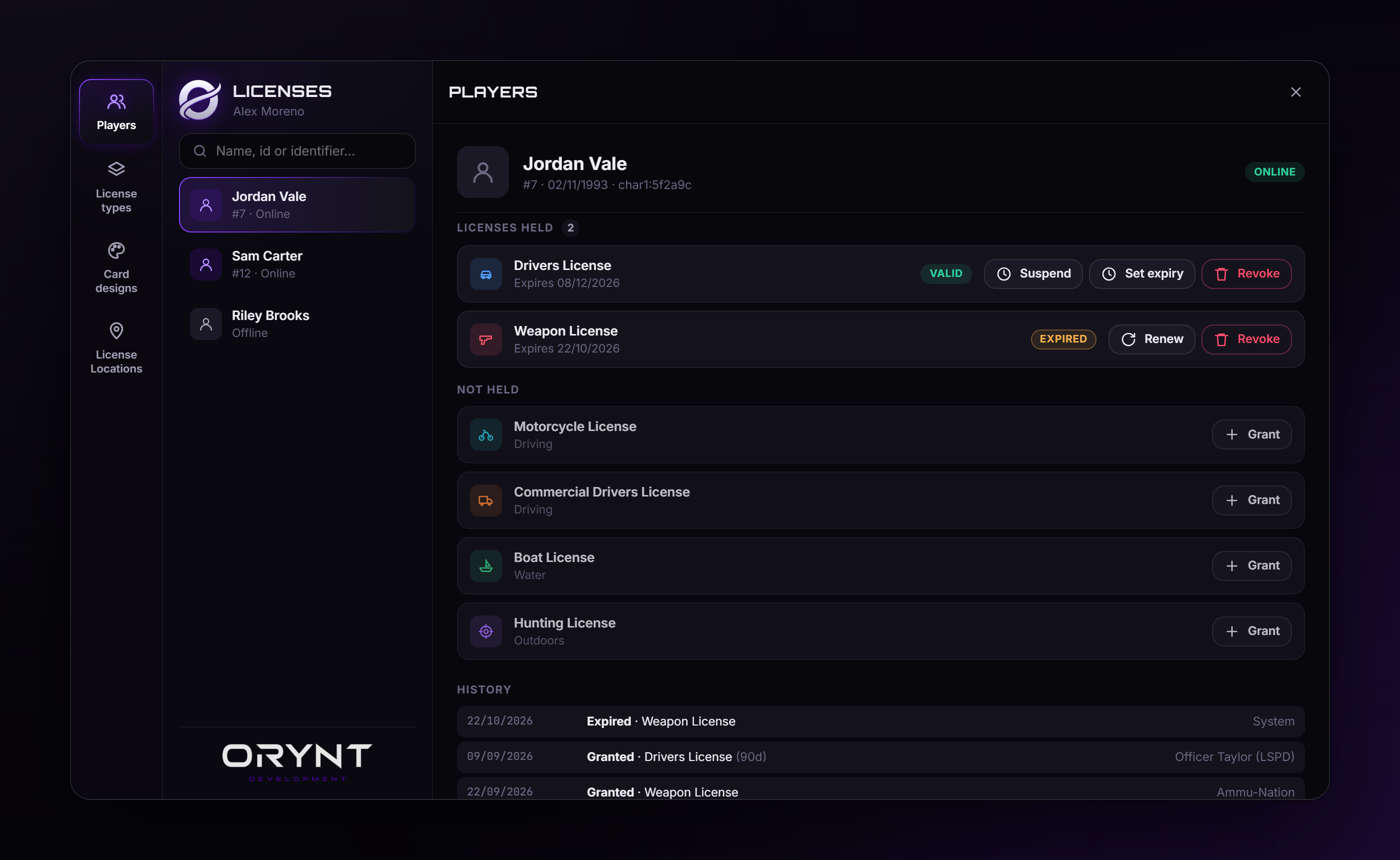
- Players: search any character, online or offline. Grant (with a validity), revoke, suspend (reason, days or until lifted), unsuspend, renew, set expiry, and the full history of who changed what.
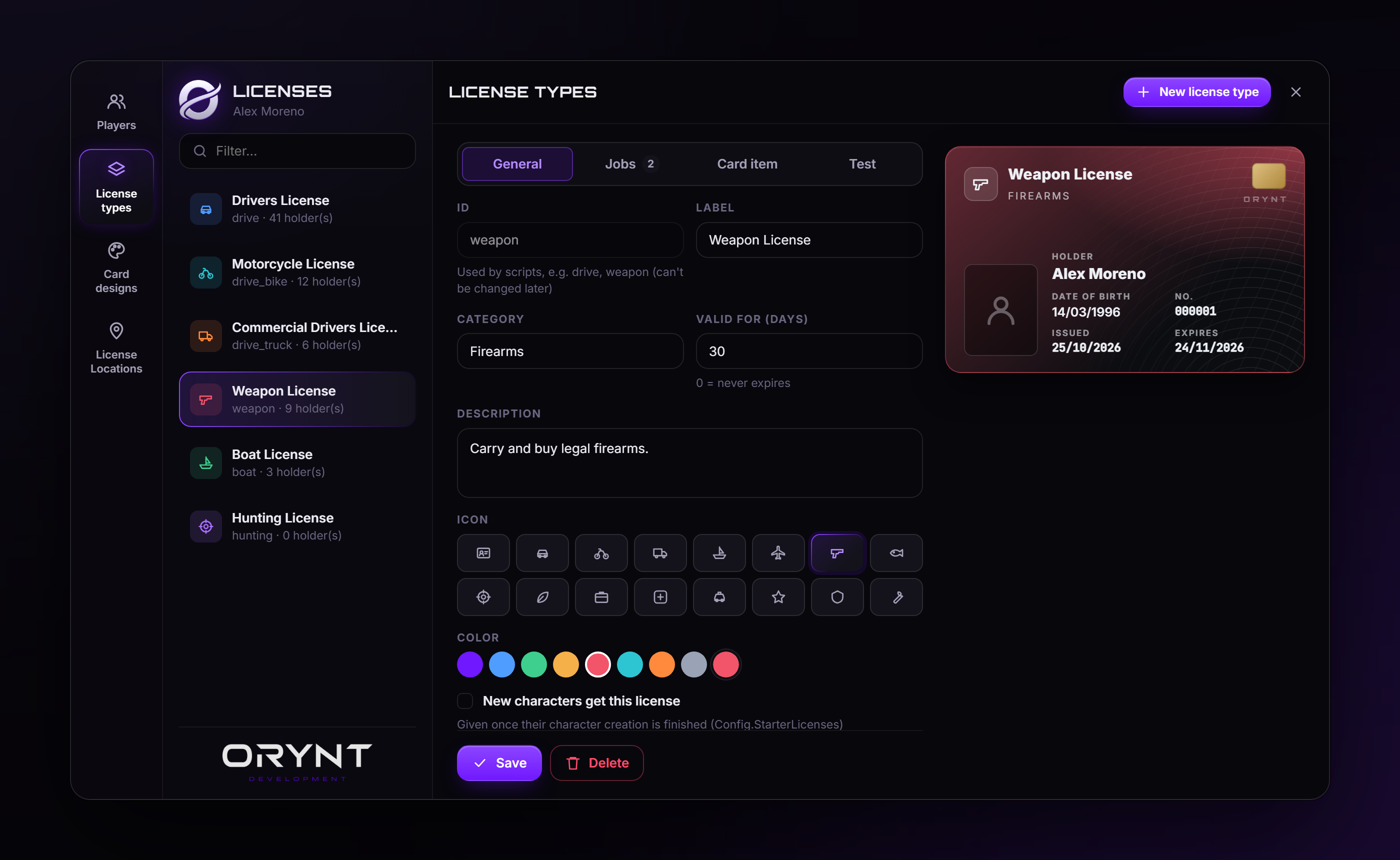
- License types: create, edit and delete in-game, no restart. Label, category, description, icon, colour, days valid, the jobs (and minimum grade) that can grant / revoke it, its card item, and its test.
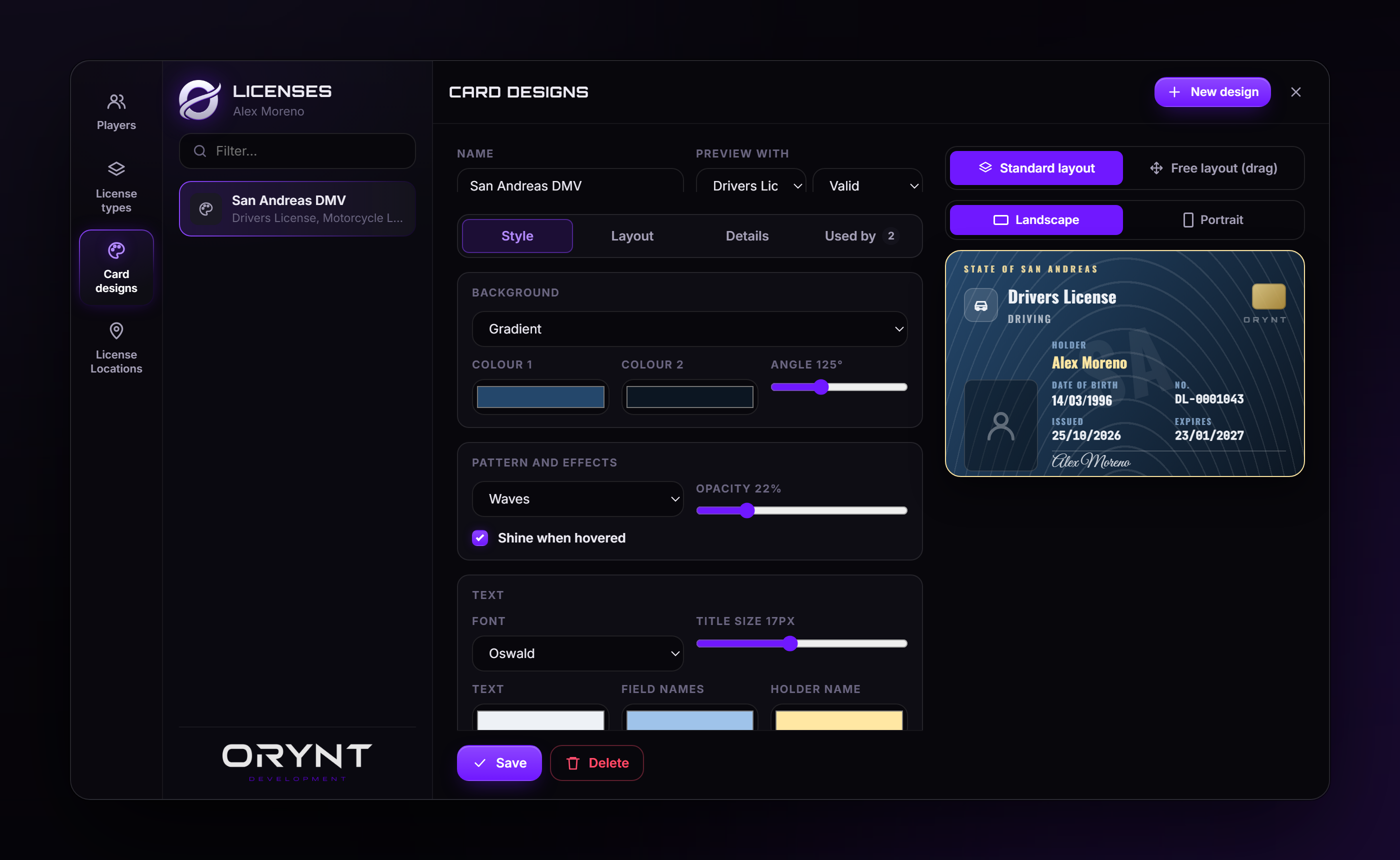
- Card designs: a full card designer. Backgrounds, patterns, fonts, colours, header, logo, watermark, number format; a standard layout or a free layout (drag, snap, resize, rotate every part), your own text boxes and images, landscape or portrait, job and signature lines. Each license type picks a design.
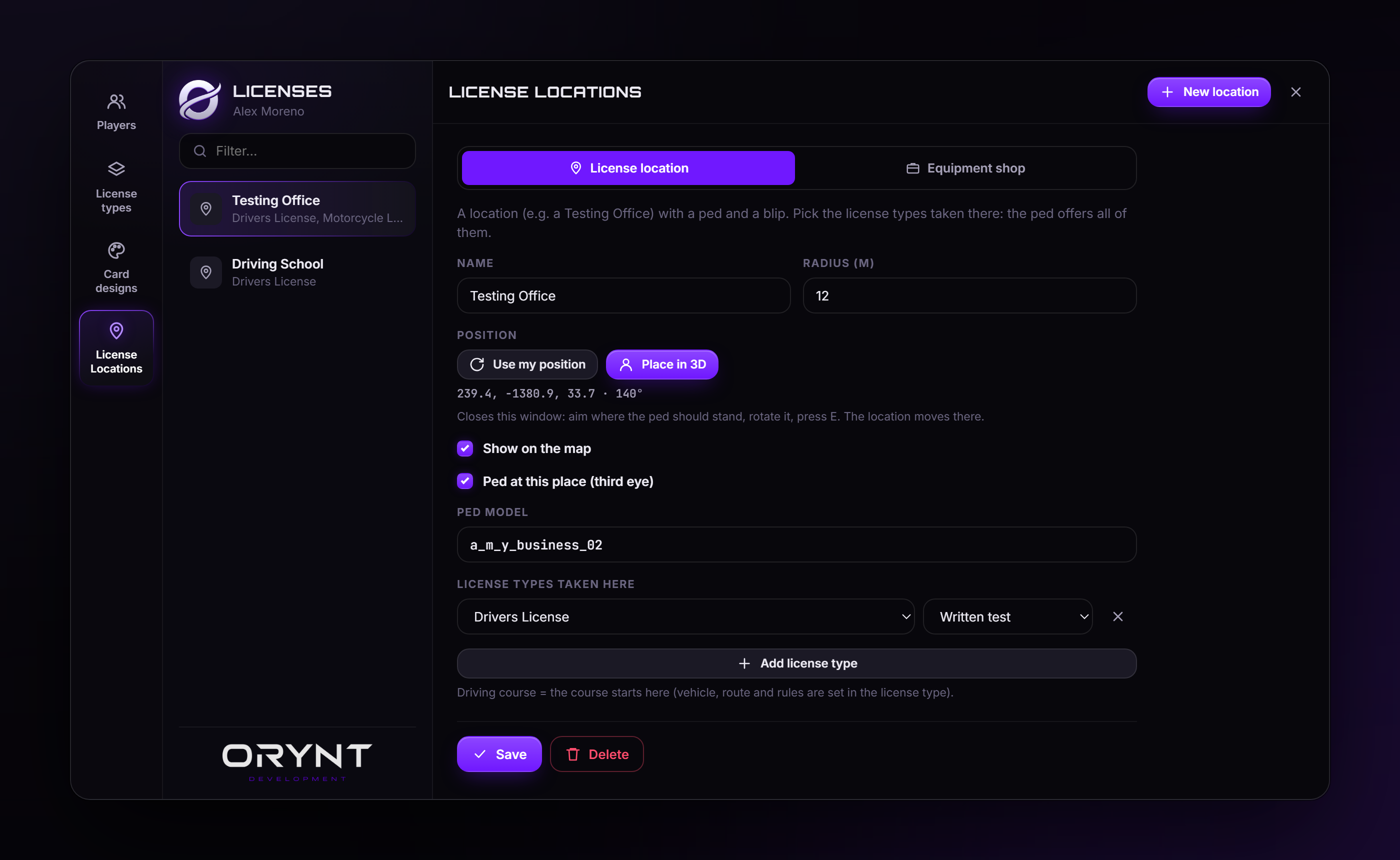
- License Locations: a ped (placed in 3D), radius and optional blip. A location offers the license types you pick (the written test and the driving course can be at different places), or is an Equipment shop selling any items.
- Clean layout: tabs in the editors, Save always in reach, a warning before leaving unsaved changes, list filters.
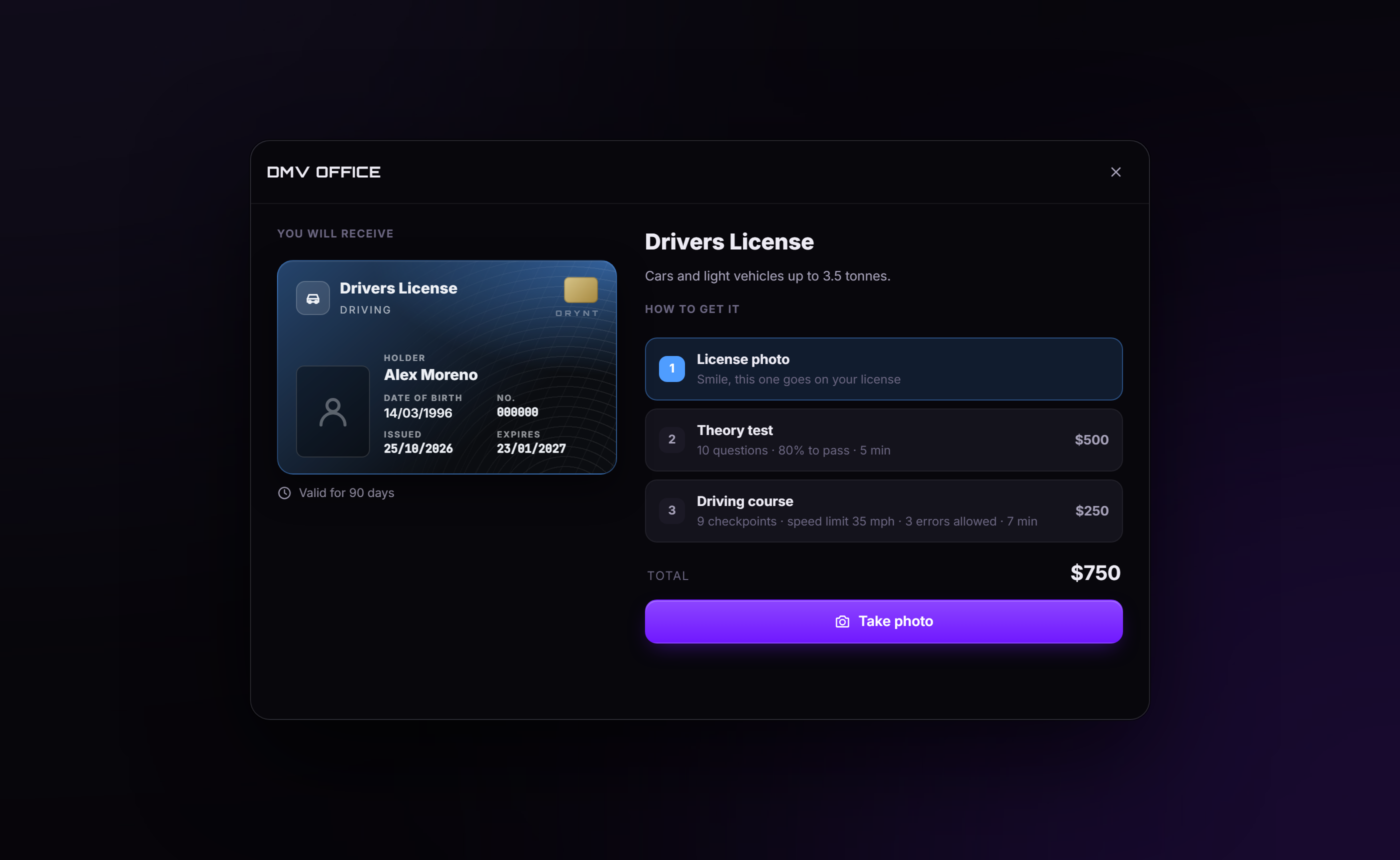
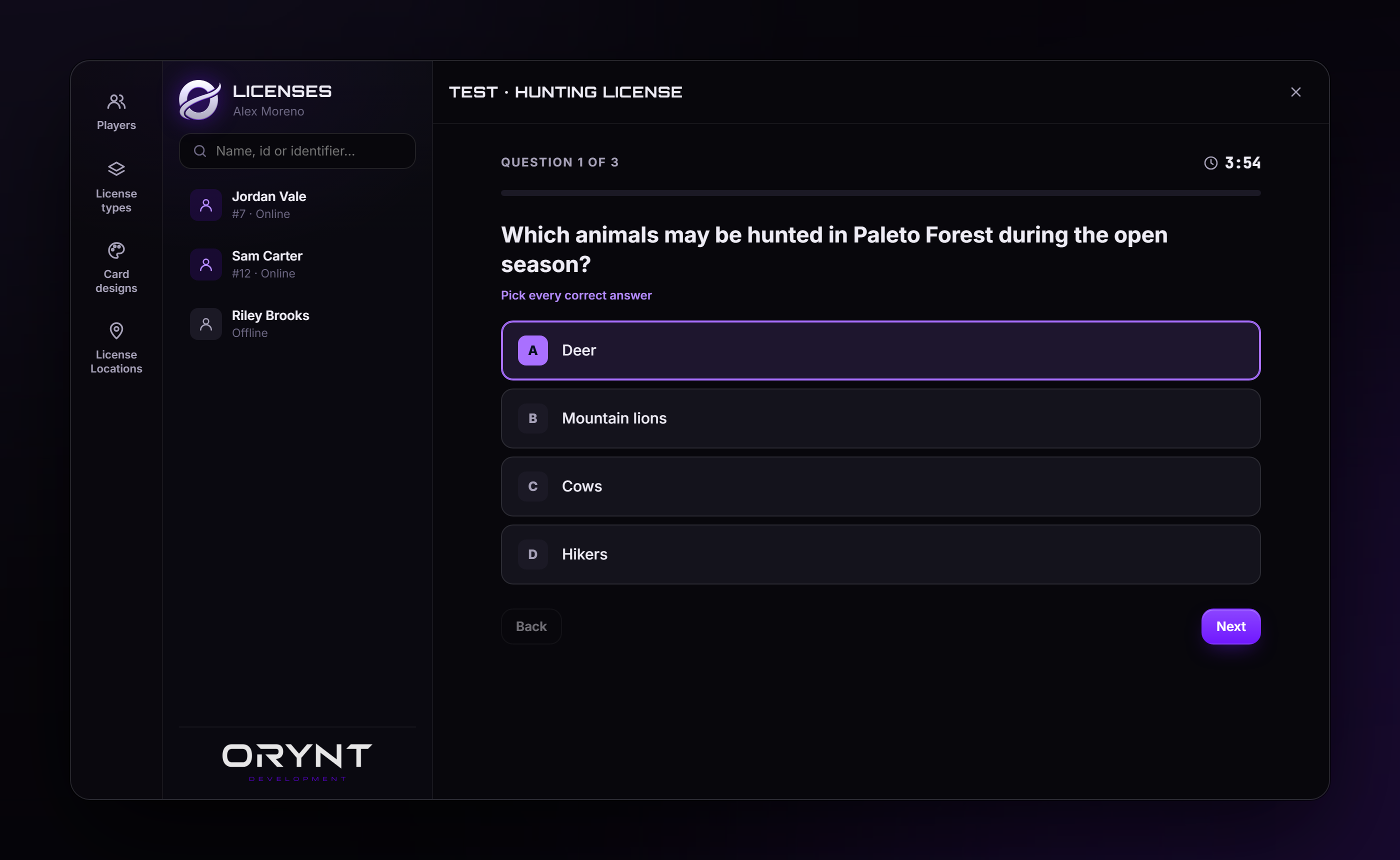
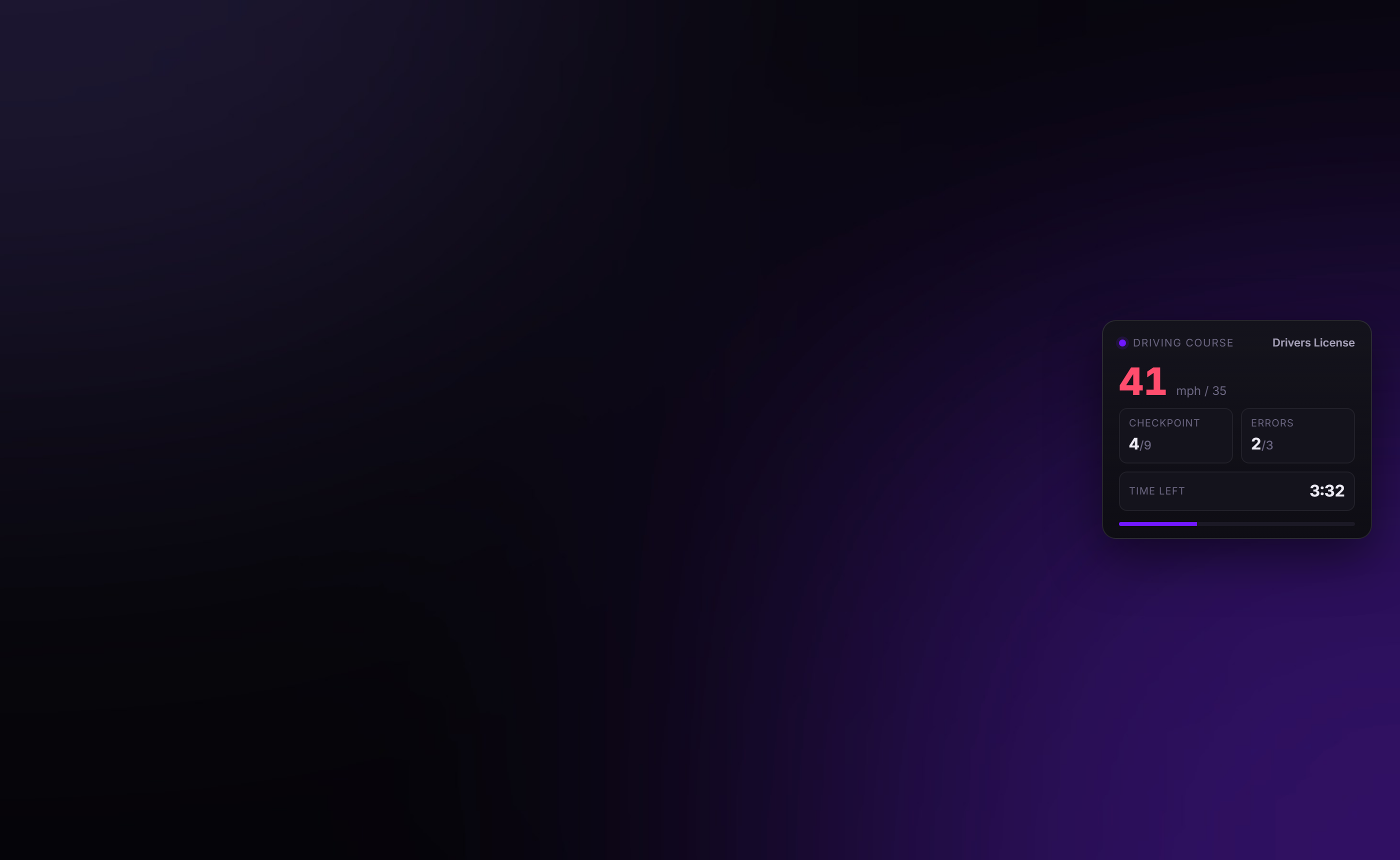
Getting a license - Talk to the ped (ox_target, qb-target or E): a desk menu for every license offered there. - Take Photo first: the character stands still, looks straight ahead and is shot in front of a green screen; the background is removed completely. - Written tests: any number of questions, 2–6 answers, one or more correct, pass mark, random question sets, time limit, price, wait after failing, a license needed first, your own pass / fail messages. Answers never leave the server. - Driving courses: the vehicle per license type, its spawn point, a route recorded by driving it once; speeding, crashes and leaving the vehicle count as errors; a live HUD; every checkpoint checked by the server. - Retake the license photo or buy a replacement card at the location.
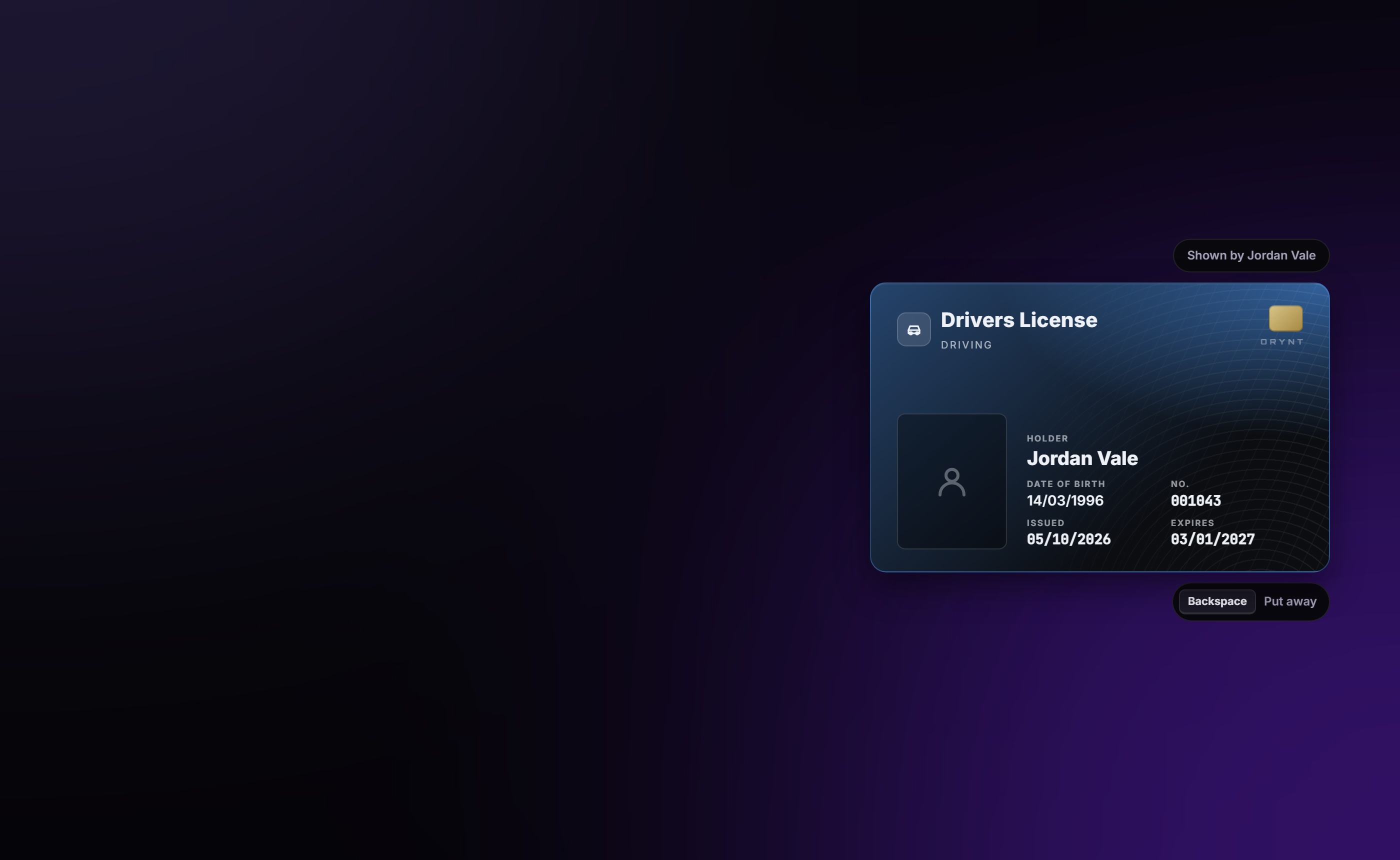
ID cards (inventory items: ox_inventory, qs-inventory, qb-inventory...) - The holder, number, issue and expiry dates on every card (also in its item description). - Using one shows it to you and the nearest player, holding it up; each player closes their own. - Always shows the license's real status: valid, expired, suspended or revoked. Revoking or making a copy never takes a card away.
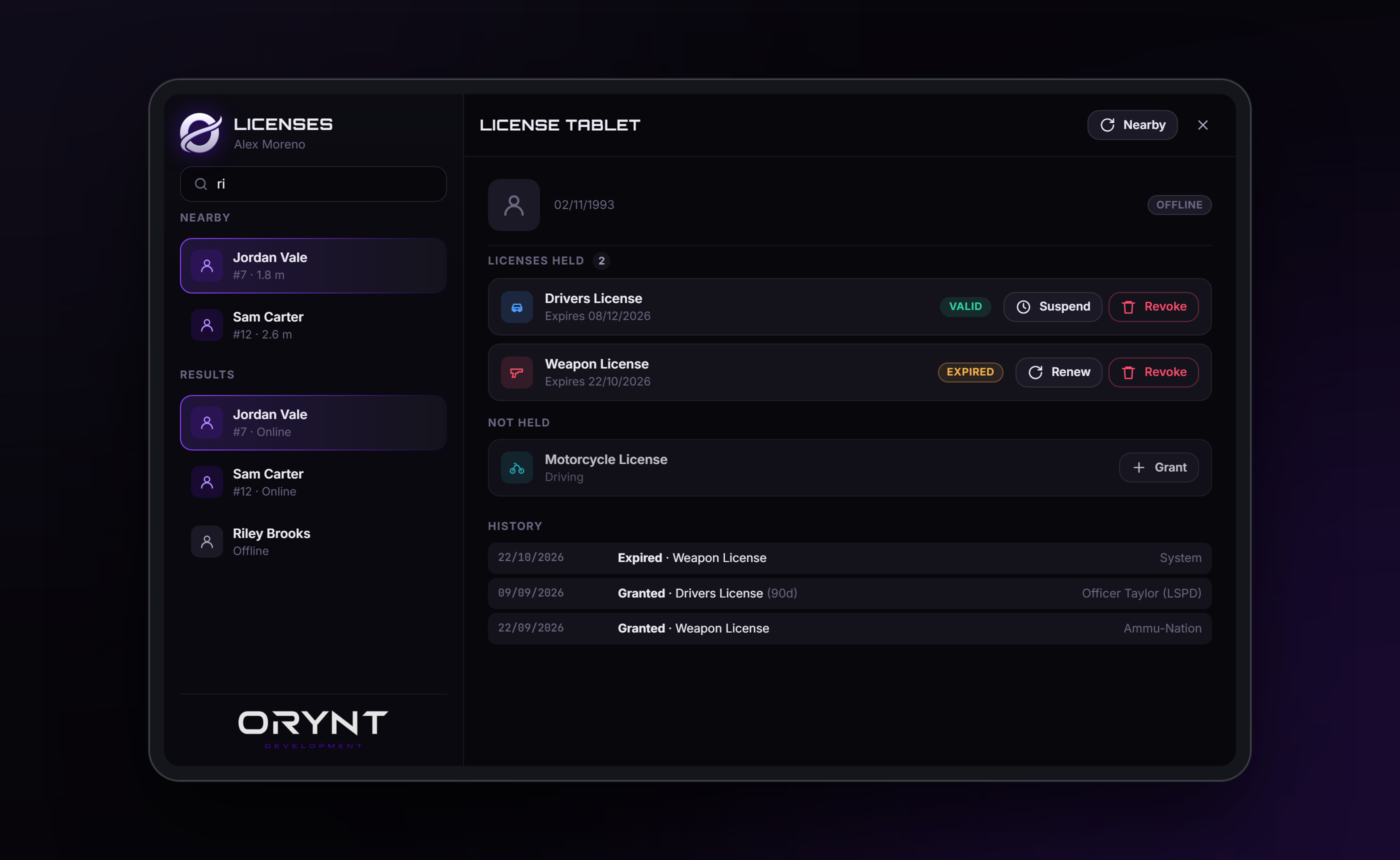
Licensing tablet for police / jobs: an MDT-style tablet (item, with an animation). Search anyone, online or offline; grant, revoke and suspend only the licenses their job and grade allow.
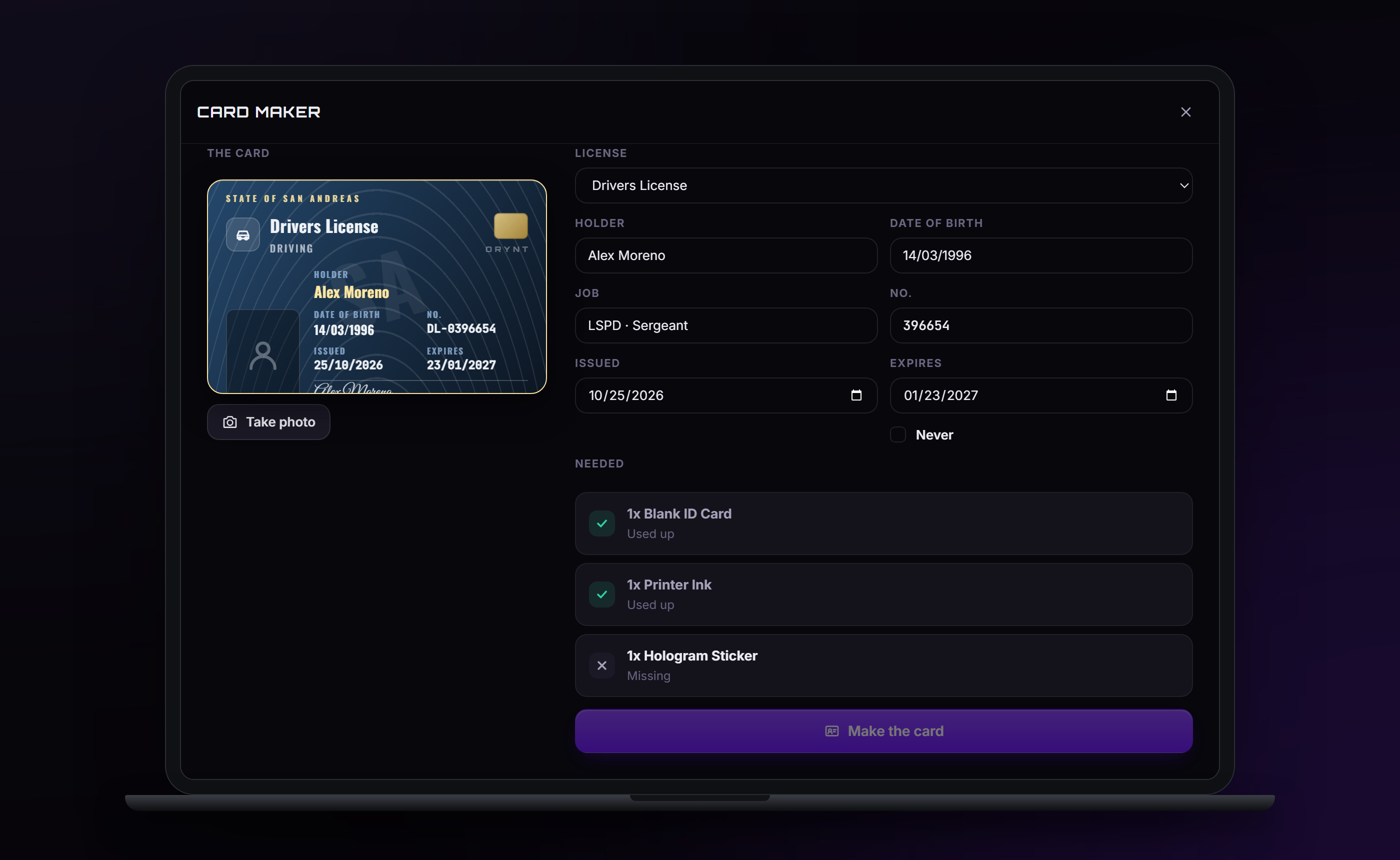
Fake cards: buy a card printer and a laptop at an Equipment shop, place them anywhere (aim, rotate, raise / lower), connect them, and use the laptop: any license, with everything written on it chosen by the player, and a photo. Needs the items you set (a blank card, ink, a hologram sticker). They look and work exactly like real cards, but no license is behind them, so the tablet finds nothing. Placed equipment stays after restarts; anyone can use it or pick it up.
New characters can start with licenses you pick, given once their character creation is finished, with any character creator.
Also
- Photos on Fivemanage, so offline players' cards show their face (the API key stays on the server).
- Expiry and timed suspensions checked automatically; expired / suspended licenses leave user_licenses (and the
QBCore / Qbox metadata), so every other script respects them.
- ESX: replaces esx_license: the same events and callbacks, so esx_dmvschool, esx_weaponshop, esx_policejob and
the rest work unchanged. Your existing licenses and types are kept.
- QBCore / Qbox: licenses go in metadata.licences too (a license type can use another name there, e.g. drive
is QBCore's driver, Config.MetadataNames). Characters from before Orynt Licenses keep the licenses already in
their metadata (taken over once). New characters start with none, also not QBCore's automatic driver license: they
get licenses through tests, or tick "New characters get this license" on a type.
- Discord logs, exports for your own scripts, fully translatable, colours in the config.
Requirements
| orynt_bridge | Required (free, from Orynt Development): finds your framework, inventory and third eye |
| ESX, QBCore or Qbox | Required (one of them, detected automatically) |
| oxmysql | Required |
| ox_lib | Required |
| An inventory | For the ID cards, the licensing tablet and fake cards: ox_inventory, qs-inventory, codem-inventory, tgiann-inventory, origen_inventory, core_inventory, qb-inventory, ps-inventory, lj-inventory. ESX's own inventory works for the tablet and fake card equipment, not for card items (it has no item metadata) |
| ox_target / qb-target | Optional, for the peds and placed equipment (otherwise players press E) |
| screenshot-basic | Optional, for license photos (without it the game view is read directly) |
| Fivemanage account | Optional, to save license photos online (offline players' cards show their face) |
Files
orynt_licenses/
├── config.lua            Settings (editable)
├── fxmanifest.lua
├── README.md / LICENSE.md
├── locales/en.lua        All text (editable, copy to translate)
├── shared/text.lua       Loads the language
├── client/main.lua       The windows, photos, showing cards, the card item, the tablet
├── client/tests.lua      Driving courses, recording a route, License Location peds and blips
├── client/forge.lua      Fake cards: placing the card printer / laptop, Equipment shops
├── server/
│   ├── sv_config.lua     Discord and console logs (editable)
│   ├── bridge.lua        Characters, money, items and QBCore metadata through orynt_bridge (editable)
│   ├── db.lua            Database
│   ├── photos.lua        License photos on Fivemanage
│   ├── main.lua          Permissions, changes, the editors, cards, the tablet
│   ├── tests.lua         Written tests and driving courses
│   ├── places.lua        License Locations and Equipment shops
│   ├── designs.lua       Card designs
│   ├── forge.lua         Fake cards, placed equipment, Equipment shops
│   ├── starter.lua       Licenses for new characters
│   ├── compat.lua        esx_license events and callbacks (ESX)
│   └── logs.lua          Discord webhook sender
├── html/                 The window and the cards
└── install/              The items: ox_inventory/ (items.lua entries and the pictures), qb-core/ (shared items),
                          esx/ (SQL for ESX's own inventory)
Files marked editable stay readable when the resource is escrowed.
Installation
- ESX: remove esx_license (delete the folder or move it out of
resources, and removeensure esx_licensefromserver.cfgif it's there). Orynt Licenses replaces it. - Put the
orynt_licensesfolder in yourresourcesfolder and add toserver.cfg(after your framework, oxmysql, ox_lib and orynt_bridge):cfg ensure orynt_bridge ensure orynt_licensesOn ESX, scripts that listesx_licenseas a dependency start it automatically: Orynt Licenses provides it. - Staff access: admins in your framework's
adminorsuperadmingroup already have it. Or by ace:cfg add_ace group.admin orynt_licenses.admin allow - Items, for your inventory:
- ox_inventory (ESX / Qbox / QBCore with ox): paste everything in
install/ox_inventory/items.luaintoox_inventory/data/items.lua. - qb-core's item list (qb-inventory, qs-inventory, ps-inventory...): pasteinstall/qb-core/items.luaintoqb-core/shared/items.lua. - ESX's own inventory: runinstall/esx/items.sql(card items need an inventory with metadata, see Card item).
Copy the pictures in install/ox_inventory/web/images/ to your inventory's image folder
(ox_inventory/web/images/, qb-inventory/html/images/...). On every inventory but ox_inventory, the items are
made usable by Orynt Licenses itself.
| Item | |
|---|---|
license_card |
The license card (licenses without an item name of their own) |
license_tablet |
The license tablet for police / jobs |
card_printer, card_laptop |
Fake card equipment (placed) |
blank_card, printer_ink, hologram_sticker |
Used up for each fake card |
5. Restart the server. The tables are created automatically (your existing licenses and user_licenses are kept): |
|
| ``` | |
| [Orynt Licenses] framework: qbcore, inventory: qb-inventory, third eye: qb-target | |
| [Orynt Licenses] Started: 7 license types loaded | |
| ``` | |
Wrong one found? Set Config.Framework / Config.Inventory / Config.Target in config.lua (or once for every |
|
| Orynt script in orynt_bridge's config). | |
6. Open /licenses > License types and give your types an icon, colour, validity and issuing jobs. |
Using it
Players: go to the place a license is tested and talk to the ped (third eye, or E). A menu for just that
license opens: the card they'll get, the steps, what it costs, and the button to start. Players don't use /licenses;
to carry and show their licenses, turn on the card item.
Jobs (set per license type as issuers / revokers, with a minimum grade): the license tablet, an inventory
item (license_tablet, added in Installation step 4).
Give it to your police (or any job). Using it plays a tablet animation and opens the tablet: players near you at the top,
and a search for any citizen by name or server ID, online or offline. Pick one to see their licenses: grant the ones
your job may grant, revoke / suspend / unsuspend / renew the ones it may revoke, and the history of those licenses. Only
license types your job (and grade) is set up for show, the server checks the item, the job, the grade and on-duty
status (Config.RequireOnDuty) on every action.
Staff (Config.AdminAce / Config.AdminGroups): /licenses has everything. Players searches every character (online or offline) by name, server id or identifier, with every action, a
validity in days when granting and the character's full history, License types is the editor, plus Card
designs and License Locations. Staff take tests like everyone else, at a License Location.
License types (the editor)
/licenses > License types > New license type, or pick one to edit.
| Field | |
|---|---|
| Id | The name scripts use (e.g. drive, weapon). Letters, numbers and _. Can't be changed later |
| Label | What players see (e.g. "Drivers License") |
| Category | Small text on the card (e.g. "Driving") |
| Valid for (days) | Licenses granted expire after this many days. 0 = never |
| Description | Shown when a player opens the card |
| Icon / Color | The card's look |
| Jobs that can grant it | Job + minimum grade (e.g. dmv 0, police 3) |
| Jobs that can revoke / suspend it | Job + minimum grade |
| Give a card item | When Config.Item.enabled is on |
Delete removes the type and takes it from every player (scripts using that id stop working with it).
License tests
In License types, pick a type and switch on Players can get this license by taking a test.
| Setting | |
|---|---|
| Pass mark (%) | Score needed to pass |
| Questions per test | 0 = all questions, otherwise that many picked at random each attempt |
| Time limit (seconds) | 0 = no limit. Answers handed in after the time are a fail |
| Price / Paid from | What starting the test costs, from cash or bank (0 = free) |
| Wait after failing (minutes) | How long before they can try again |
| Needs this license first | E.g. a learner's permit before the drivers license |
| Where it's taken | Use my position to only allow it at a place (radius in m, a name, a map blip). Or anywhere |
| Questions | The question, 2 to 6 answers, tick every correct one (several = players must pick all of them) |
Players start tests at the ped of the test place (see License Locations): the desk menu shows the price, the number of questions, the pass mark and the steps. The test shows one question at a time with a progress bar and the timer, then the result. Passing grants the license with the type's validity, like any other grant.
Questions are picked, shuffled and marked on the server; the correct answers are never sent to players. Leaving a test before finishing it (closing the window, leaving the server) counts as a failed attempt. Every attempt is in the player's history.
Driving course
Under 2 · Driving course, tick Players must drive a course. A license type can have the questions, the course, or both (questions first, then the course).
| Setting | |
|---|---|
| Vehicle spawn name | Any vehicle model, e.g. blista, bati, mule, or an add-on car's spawn name |
| Vehicle spawn point | Stand (or sit in a vehicle) where the test car should appear and press Use my position. The heading is saved too |
| Checkpoints | Record route closes the menu. Drive the route and press E at each checkpoint, X removes the last one, Enter saves, Backspace cancels. Up to 60 |
| Speed limit | In Config.Practical.speedUnit (mph or km/h). 0 = no limit |
| Errors allowed | Speeding and crashes are errors. One more than this and the course fails |
| Time limit (seconds) | 0 = no limit |
| Price of the course | Charged when the course starts, from the same account as the test |
Price, wait after failing and needs this license first are shared by both parts.
Message after passing: the theory test part has a message shown on the result screen when it's
passed, e.g. Congratulations on passing your written! Head to the DMV to take the driving part. {place} is
replaced with where the driving course starts and {license} with the license. Without a driving course it's shown
when the license is given. Empty = the default text (theoryPassedNext in the locale file).
Message after failing: shown on the result screen when the test is failed, e.g. You scored {score}%, you needed
{pass}%. Study the handbook and come back. {score}, {pass} and {license} are filled in. The wait before
retrying is added after it. Empty = the default text.
Two places (e.g. the written test at the DMV office, the driving course at a driving school): put the written
test at one License Location and the driving course at another. Passing the
written test doesn't give the license: it's saved as passed, the player's next step shows at the driving school (with
Set GPS from the office's menu), and only passing the course grants the license. Players have
Config.Practical.theoryValidDays days between the two. When the course place isn't set, the course starts at the
written test's place, or near the vehicle spawn point if neither is set.
The player gets a fresh test car (plate Config.Practical.plate), checkpoints with a route on the map, and a HUD with
their speed, checkpoint, errors and time left. The course fails when they make too many errors, run out of time, stay out
of the car for leaveSeconds, wreck it or die. Either way the car is removed and they're put back at the test place.
Once the questions are passed, players have Config.Practical.theoryValidDays days to pass the course before they must
redo the questions. A failed course doesn't make them redo the questions. If the car can't spawn (wrong spawn name),
the course price is refunded and it doesn't count as an attempt.
Keys and fuel: use Config.Practical.onVehicle to give the test car keys / fuel with your scripts (examples in
config.lua).
License Locations (peds and blips)
Tests are taken at License Locations, made in /licenses > License Locations: e.g. a Testing Office for the written tests and a Driving School for the driving courses. New location:
- a name and a radius (players start tests inside it)
- Use my position, or Place in 3D: the menu closes and a see-through preview of the ped follows where you look, with the radius drawn around it and an arrow showing which way it faces. Scroll or the arrow keys rotate it (hold Shift for small steps), E or left click places it, Backspace cancels
- Show on the map (blip) and Ped at this place with its model (e.g.
a_m_y_business_02) - License types taken here: Add license type, pick it from the list, and whether its Written test or its Driving course is taken here. Add as many as you want.
One ped and one blip offer every license type taken there: targeting the ped (ox_target or qb-target) or pressing
E next to it (without a target script) opens a menu with all of them, and the third-eye option shows the
location's name. Set Config.Target to force one. Moving a location moves it for every license type. Deleting it takes
its license types off it.
Which license is taken where is only set here, in License Locations. A license with no location is taken anywhere; a driving course with no location starts where the written test is taken (or near the vehicle spawn point).
Licenses for new characters
Tick New characters get this license on a license type (/licenses > License types > General). Every new character gets it, with its card and photo, as soon as their character creation is finished. It works with any character creator, with or without multicharacter:
- New characters are recognised by ESX itself (
isNewwhen the character loads); on QBCore / Qbox a new character is one Orynt Licenses has never seen (every character that existed when it was installed counts as seen). They're saved as waiting, so leaving half-way through creation doesn't lose it. - "Finished" is the save event of the clothing / creator script, set in
Config.StarterLicenses.finishEvents(esx_skin:save,qb-clothing:saveSkin, illenium-appearance and fivem-appearance are listed). Using another script? Add its save event there, or call one of these from it when the character is done:lua -- server TriggerEvent('orynt_licenses:characterCreated', source) exports.orynt_licenses:CharacterCreated(source) -- client TriggerServerEvent('orynt_licenses:server:characterCreated') - Nothing came? After
fallbackMinutes(10) they get the licenses anyway.
The license photo is only taken once the player is out of the creator: no menu open, no creator camera, screen not faded, for a few seconds in a row. Someone still making their character when the licenses arrive keeps the photo waiting until they're done. (The same goes for licenses granted by a job or staff while the player is in a menu.)
Existing characters don't get them: only characters created after this is set up.
Fake cards
Players make fake cards themselves, with a card printer and a laptop (items):
- Buy them. In /licenses > License Locations, switch a location to Equipment shop (a ped, placed in 3D
like any location; its map blip starts off so players have to find it). List the items it sells
(
card_printer,card_laptop,blank_card,printer_ink,hologram_sticker, or anything else) with their price, and what they're paid with (cash, bank or dirty money). - Place them. Using the printer or laptop item places it: a see-through preview follows where you look (floors, tables), scroll or ← → to rotate, ↑ ↓ to raise or lower it (Shift: fine), E to place.
- Connect. Third eye the laptop > Connect printer (a printer within
connectDistance). - Make the card. Third eye the laptop > Use laptop: pick the license, write everything printed on it (name,
date of birth, job, license number, issued and expiry dates or never), take the photo (the same studio shot as a
real license) and Make the card. It needs
Config.FakeCards.required(by default a blank ID card, printer ink and a hologram sticker, all used up). The menu closes and the printer prints it.
Placed equipment is saved: it's still there after a restart. Anyone can use it or pick it up (third eye >
Pick up), so police can seize it. One player can have maxPerPlayer printers / laptops placed at once.
A fake card is the same item as the real one, with the same data and description, the same design, shown the same way.
Past its own expiry date it shows expired. No license is behind it: the license tablet finds nothing for that person,
which is how police catch it. Every fake card made is saved (orynt_license_fakes, with who made it) and logged to
Discord (the grant webhook).
Items: see Installation step 4. Settings: Config.FakeCards (item names, prop
models, times, what's required, which license types can be faked).
Card designs
/licenses > Card designs changes how license cards look. New design, then:
| Section | |
|---|---|
| Background | The license's colour (standard), a gradient (2 colours, angle), a solid colour, or an image (https URL, darken) |
| Pattern and effects | Guilloche, lines, dots, waves or none, its opacity, the shine when hovered |
| Text | Font (Inter, Michroma, Oswald, Rajdhani, Playfair Display, Bebas Neue, Courier Prime), size of the title, colours of the text, field names and holder name |
| Shape | Corners, border width, border colour (or the license's colour) |
| Layout | Photo left or right, square / rounded / round, or Free layout (the switch above the preview): drag every part of the card (header, icon, license name, chip/logo, ORYNT mark, photo, each field, signature, watermark) anywhere, click one to select it, drag its corner handle (or the Size slider) to resize it and its round handle (or the Rotation slider) to rotate it (15° steps with Snap), arrow keys nudge it (Shift: bigger steps), reset one or all. Add text (with {holder} {job} {license} {number} {dob} {issued} {expires} {category} filled in per card, font, colour, bold / italic / caps, opacity) and Add image (https URL, opacity, rounded corners), up to 20, move them forward / back, Delete removes them. Snap lines parts up with the card's edges and centre and with each other (pink guide lines); hold Alt to drag freely |
| Fields | Show or hide the icon, chip, category, date of birth, number, issued, expires, a signature (the holder's name handwritten) and the holder's job ("LSPD · Sergeant", their current job; offline players' from the database); rename every field |
| Card shape | Landscape or Portrait (an upright card); works with both layouts |
| Extras | A header line (e.g. STATE OF SAN ANDREAS), a logo (https URL, replaces the chip), a watermark, a number prefix (e.g. DL-) and length |
The preview updates as you change things; Preview with shows it with any license type (its icon and colour) and as valid, suspended or expired. Pick the license types that use it under License types using this design. License types without a design keep the standard card. Every card everywhere (shown licenses, the card item, staff lookups, the License Location menu) uses its license type's design.
Photos
License photos have no background: the character stands on the card itself (Config.Photos.removeBackground). They're
taken like in a studio: for a moment a camera is put in front of the player's face, with a green screen behind them and
a soft light, a screenshot is taken at the screen's resolution and the green is keyed out. It uses
screenshot-basic when it's running and otherwise reads FiveM's game
picture itself, so nothing extra is needed. If that isn't possible (in a vehicle, ...) the game's transparent headshot
is used (clean, lower resolution). removeBackground = false: the game's hi-res headshot with its grey background.
Photos are saved lossless (PNG). Without saving, a photo
only shows while that player is online and nearby.
Saving photos on Fivemanage (recommended):
- Make an account at fivemanage.com, then Tokens > Create token (Media).
- In
server/sv_config.luasetSvConfig.Photos.enabled = trueand paste the key inapiKey, or keepapiKeyempty and addset orynt_licenses_fivemanage "your-key"to server.cfg. - Restart.
At a License Location the first step is Take photo (Config.Photos.beforeTest): the camera flashes and the photo
lands on the license preview, then the test can start (Retake photo until they're happy). That photo is the one
on the license they get. Licenses granted by a job or staff take a photo at that moment instead.
Like a real ID, each license gets its own photo, taken for it: at the desk, or when it's issued.
Players who hold a license can come back to its License Location for Retake license photo (replaces the photo on
the license) and Get a new card (lost card: they get a new one, any old card stays where it is).
Prices in Config.Copies (photoPrice, cardPrice, account; 0 = free). Both show in the player's history. Nothing is taken automatically otherwise. Getting a license again (renewed after
it expired, re-granted) takes a new photo, so a new haircut shows on the next license. The server uploads it and saves
the link in orynt_license_card_photos; the card then shows it everywhere: staff looking up offline players, licenses
shown to others, the card item. The old photo is deleted from Fivemanage (deleteOld). The key is only used by the
server and is never sent to players.
Expiry and suspensions
- An expired or suspended license is taken out of
user_licenses, so every other script treats it as gone. It still shows on their card, stamped Expired / Suspended. - Renew makes an expired license valid again (staff choose the new validity; jobs give the type's default).
- Suspend for a number of days (lifted automatically) or until someone unsuspends it.
- Expiries and timed suspensions are checked every
Config.CheckEveryMinutes(default 5).
Card item (optional)
- In
config.lua:Config.Item.enabled = true. - In License types, open a license and tick Give a card item. Enter an Item name (e.g.
drivers_license) and press Copy: the editor gives you the ox_inventoryitems.luaentry for it, with the license's label (other inventories: add an item likelicense_cardininstall/qb-core/items.luawith that name). Don't start the name withweapon_: inventories treat those as guns and refuse the card (use e.g.firearm_license). Add it to your inventory and restart it. It shows thelicense_card.pngpicture; for its own, putdrivers_license.pngin your inventory's image folder (ox_inventory: and removeimage = 'license_card.png'from the entry). - Save the license type.
Leaving the item name empty uses one shared item for all licenses (Config.Item.name, license_card):
lua
   ['license_card'] = {
       label = 'License',
       weight = 10,
       stack = false,
       close = true,
       client = { export = 'orynt_licenses.useCard' },
   },
Using a license card shows the license on your screen and on the nearest player's (within Config.ShowDistance), with
an animation of you holding the card up (Config.ShowAnimation). With nobody near, only you see it. Each player puts
it away on their own screen with Backspace: closing yours lowers your arm, the other player keeps it until they
close it.
Granting a license gives its card (per type, it can be turned off in the editor), unless they still carry one for it. Cards are never taken away: a card remembers whose license it is, and using it shows that license as it stands now, valid, suspended, expired or revoked (stamped on the card, plus a notification), so a revoked license's card is still there to be shown, and found out. Copies don't remove the old card either.
Compatibility with esx_license scripts
Orynt Licenses answers everything esx_license did, on the same tables:
TriggerEvent('esx_license:addLicense', source, type, cb) |
Grants (with the type's validity, a record and logs) |
TriggerEvent('esx_license:checkLicense', source, type, cb) |
cb(true / false) (expired / suspended = false) |
TriggerEvent('esx_license:getLicenses', source, cb) |
cb({ { type, label }, ... }) valid licenses |
TriggerEvent('esx_license:getLicense', type, cb) / getLicensesList |
Type info / all types |
TriggerServerEvent('esx_license:removeLicense', target, type) |
Revoke (staff, Config.CompatRemoveJobs nearby, or the type's revokers) |
ESX.TriggerServerCallback / xLib.callback esx_license:* |
Same callbacks as esx_license |
Licenses granted this way show "Issued by" as the script's name (e.g. esx_dmvschool).
Configuration
config.lua
| Option | Default | |
|---|---|---|
Config.Framework / Config.Inventory |
'auto' |
Force a framework / inventory if the wrong one is found |
Config.MetadataNames |
drive = 'driver' |
QBCore / Qbox: a license type's name in metadata.licences when it differs |
Config.Command |
'licenses' |
The management command (staff) |
Config.Tablet |
on, license_tablet |
The license tablet item for jobs, and its holding animation |
Config.StarterLicenses |
on | Licenses for new characters: the creator save events, fallback time |
Config.FakeCards |
on | Fake card equipment: items, props, connect / print times, required items, fakeable types |
Config.AdminAce / Config.AdminGroups |
orynt_licenses.admin / admin, superadmin |
Staff |
Config.IssueDistance |
4.0 |
How close jobs must be to issue / revoke |
Config.RequireOnDuty |
true |
Jobs with an on-duty system only issue while on duty |
Config.ShowDistance |
3.0 |
How close to show a license |
Config.ShowAnimation |
on | Holding the card up when showing a license: animation, prop, hand, position, seconds |
Config.CompatRemoveJobs |
police |
ESX: jobs that may use esx_license's remove event (esx_policejob) |
Config.CheckEveryMinutes |
5 |
How often expiries and timed suspensions are checked |
Config.Item |
off, license_card |
The card item |
Config.DateFormat |
'dmy' |
'dmy', 'mdy' or 'ymd' on cards |
Config.Practical |
Driving courses: speedUnit, checkpointSize, speedingGrace, damagePerError, leaveSeconds, theoryValidDays, plate, onVehicle |
|
Config.Target |
'auto' |
Test peds: 'auto', 'ox_target', 'qb-target' or 'none' (press E) |
Config.PedDistance |
60.0 |
Test peds appear within this distance |
Config.Photos.hiRes |
true |
High resolution headshots on licenses |
Config.Locale, Config.Notify, Config.UI |
Language, notifications, colours / font |
server/sv_config.lua: ConsoleLogs, Discord Logs (webhook per type: grant, revoke, suspend, types),
and Photos (Fivemanage key, folder, deleteOld, see Photos).
Exports and events
-- server (target = server id or character identifier)
exports.orynt_licenses:AddLicense(target, 'drive', 'DMV', days)        -- days optional (type default)
exports.orynt_licenses:RemoveLicense(target, 'weapon', 'LSPD', reason)
exports.orynt_licenses:SuspendLicense(target, 'drive', 'LSPD', reason, days)
exports.orynt_licenses:HasLicense(target, 'weapon')                     -- true only if valid
exports.orynt_licenses:GetLicenses(target)                              -- every license with status, dates, number
exports.orynt_licenses:GetLicenseTypes()
exports.orynt_licenses:CharacterCreated(source)                         -- a new character finished creation (starting licenses)

AddEventHandler('orynt_licenses:changed', function(identifier, licenseType, action) end) -- grant/revoke/suspend/unsuspend/expiry

-- client: ox_inventory item exports (items.lua → client = { export = ... }); other inventories use them through
-- the framework's usable items, set up by Orynt Licenses
-- orynt_licenses.useCard, orynt_licenses.useTablet, orynt_licenses.useEquipment
Database
Kept exactly as esx_license uses them (on every framework; on QBCore / Qbox owner is the citizenid):
licenses (type, label) and user_licenses (id, type, owner).
Added by Orynt Licenses (created automatically): orynt_license_types (look, validity, jobs and test per type),
orynt_license_records (issue / expiry / suspension per character), orynt_license_history (every change) and
orynt_license_attempts (license tests taken), orynt_license_places (License Locations and Equipment shops),
orynt_license_designs (card designs), orynt_license_card_photos (photo links), orynt_license_fakes (fake cards
made), orynt_license_props (placed card printers and laptops), orynt_license_starters (new characters waiting for
their starting licenses) and orynt_license_seen (QBCore / Qbox: characters seen before).
Translating
All text is in locales/en.lua. Copy it to e.g. locales/de.lua, change Locales['en'] to Locales['de'], translate it
(keep the words in {braces}), set Config.Locale = 'de', then refresh and ensure orynt_licenses.
Updating
Replace the resource folder with the new version and start it (refresh, then ensure orynt_licenses, or restart the
server). Nothing to copy over:
- Your settings come back by themselves. Every start,
config.lua,server/sv_config.luaand your own translation are copied to the server (its KVP, outside the resource folder). When the new version starts with the files from the download, yours are put back and the resource restarts once to load them. - New options your config doesn't have yet use their defaults, and the console lists them once (the changelog below says what they do).
- License types, licenses, card designs and License Locations are in the database: they stay. Missing database tables or columns are added on start, so an update never needs SQL.
- Keep the resource's name (
orynt_licenses): the saved settings belong to it.
To let it restart itself after putting your settings back, add this to server.cfg (without it, the console asks
you to type ensure orynt_licenses once):
add_ace resource.orynt_licenses command.ensure allow
To go back to the default settings on purpose: type orynt_licenses:resetsettings in the server console, put the
files from the download back and restart the resource.
Updating from a version before 1.1.0: those don't save your settings yet, so this one time keep a copy of
your config.lua, server/sv_config.lua and language files, and put them back after replacing the folder. From
1.1.0 on, updates keep them by themselves.
Changelog
- 1.2.0: QBCore and Qbox support, through orynt_bridge (free, install it once: see Installation). Licenses
are kept in the database on every framework and, on QBCore / Qbox, written to the character's
metadata.licences(existing characters' licenses there are taken over once; new characters don't get QBCore's automatic driver license). ID cards, the tablet and fake card equipment work with every inventory orynt_bridge supports (qs-inventory, qb-inventory, codem, tgiann, origen, core...); new install files for qb-core's item list and ESX's items table. Peds and placed equipment use orynt_bridge's third eye. New:Config.Framework,Config.Inventory,Config.MetadataNames. Your settings and data stay. - 1.1.0: the new Orynt look: purple theme, Orbitron titles, the new Orynt logo and wordmark, purple checkboxes and
dropdowns, purple driving course markers and Discord logs, Orynt purple as the first license colour. Fixed: a new
character's starter license could take its photo in the middle of character creation (when
fallbackMinutesran out first) and break the character; the photo now waits until the player is out of the creator and any menu. Updates keep your settings now: replace the folder and your config comes back by itself (see Updating). - 1.0.1: fixed the database tables not being created on a brand-new database (the first start stopped half-way, giving "Table ... orynt_license_card_photos doesn't exist"). Each table is now created on its own, and the console names any table that couldn't be created and why. Just update: the missing tables are created on the next start.
- 1.0.0: first release.
Troubleshooting
| Problem | Fix |
|---|---|
| A script says esx_license is missing | Remove the old esx_license and restart: Orynt Licenses provides it |
| QBCore: a script doesn't see a license | It reads metadata.licences under another name: map it in Config.MetadataNames (e.g. drive = 'driver') |
| "unknown license type" in the console | A script grants a type that doesn't exist: create it in License types with that exact id |
| The tablet says no permission | Add their job as an issuer / revoker on a license type (with a grade they have), and check they're on duty if Config.RequireOnDuty |
| No photo on cards | Take it at the License Location (Retake photo). For photos on offline players' cards, set up Fivemanage |
| Item shows no picture | Copy install/ox_inventory/web/images/ to your inventory's image folder and clear the FiveM cache |
| A placed prop doesn't appear | The model in Config.FakeCards doesn't exist in your game build: pick another prop name |
| New characters get no license | Tick "New characters get this license" on the type, and add your creator's save event to Config.StarterLicenses.finishEvents (or wait fallbackMinutes) |
| A test says "This test is taken at..." | Go to the place (Set GPS), or set the test's location to Anywhere |
| Card item doesn't open | Add the item with client = { export = 'orynt_licenses.useCard' } and set Config.Item.enabled = true |
| A new file isn't loaded after updating | Run refresh, then ensure orynt_licenses |
Escrow and license
When escrowed, config.lua, server/sv_config.lua, locales/ and install/ stay readable. See LICENSE.md for the terms of use.
In short: use it on your own servers; don't resell, share or leak it; keep the Orynt Development branding.
© Orynt Development