
Features
- Stash Manager (
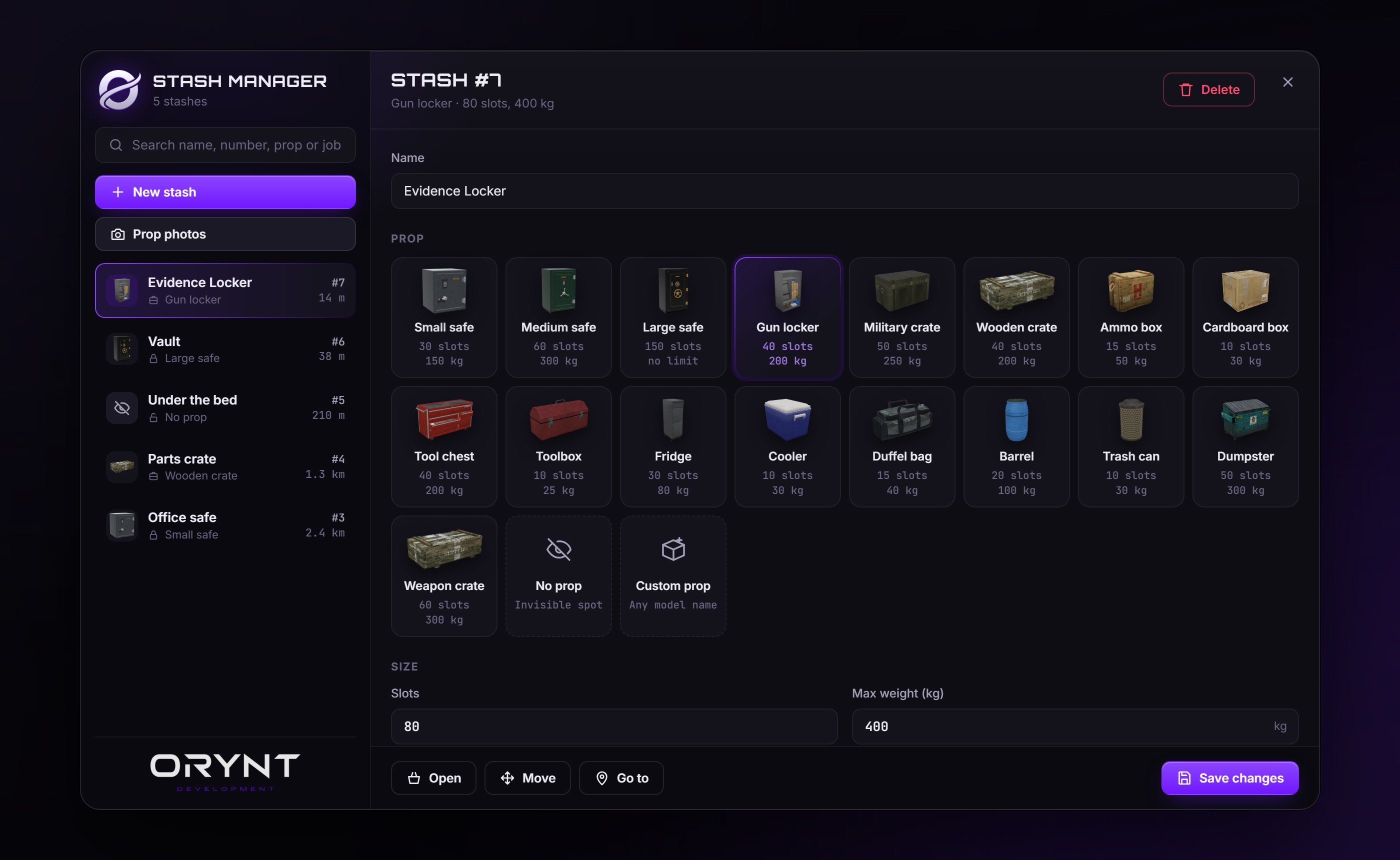
/stashes): place, edit, move, open, teleport to and delete stashes in game. - Any size: set the slots and the weight limit (or no weight limit) for each stash.
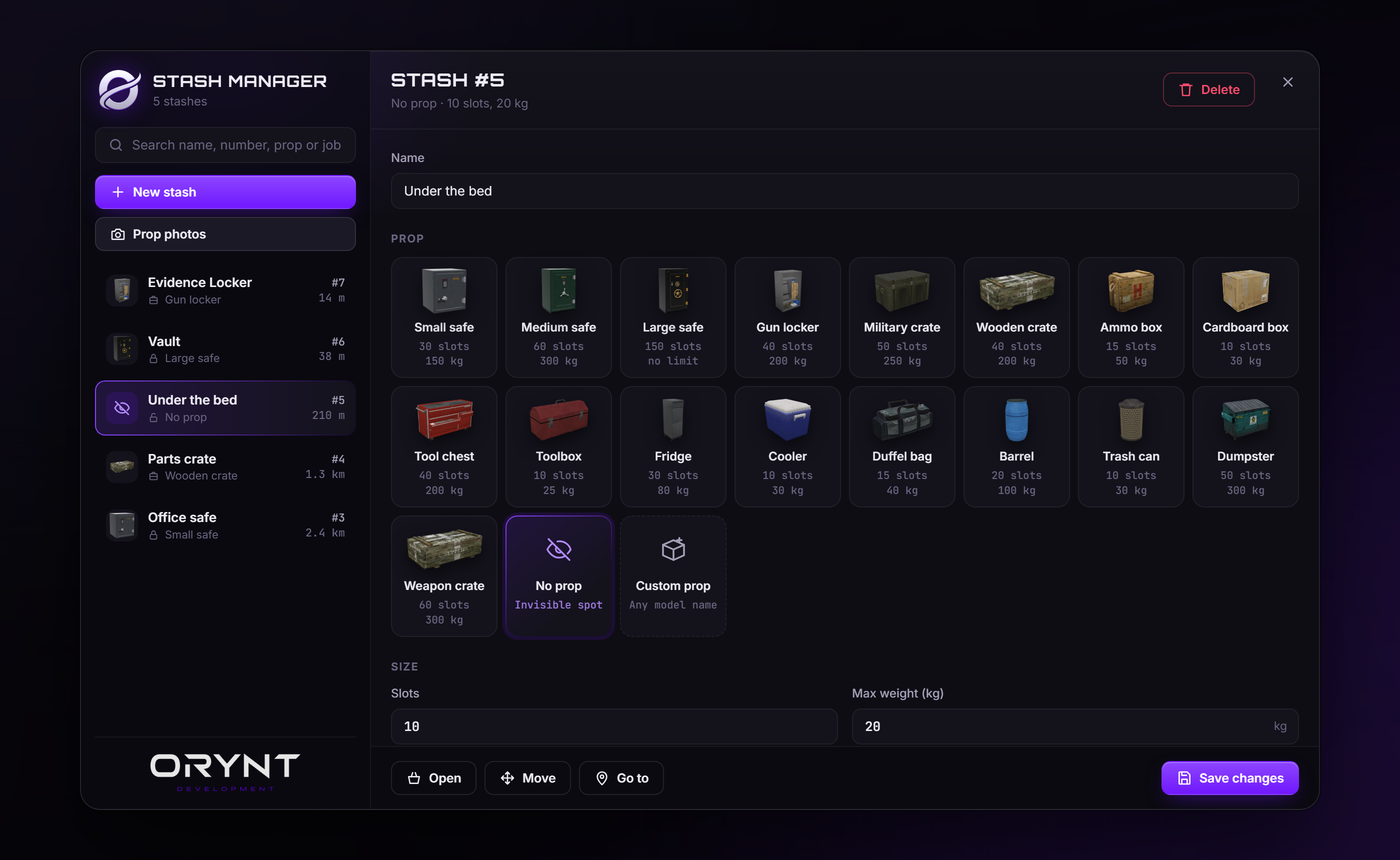
- 16 props, or none: the three Orynt safes (small, medium, large) with animated doors, plus a gun locker,
military and wooden crates, an ammo box, a cardboard box, a tool chest, a toolbox, a fridge, a cooler,
a duffel bag, a barrel, a trash can and a dumpster. Pick No prop for an invisible stash, or Custom prop
to type any model name. Add your own props to the list in
config.lua. - Saved props: save a custom prop to the prop list in game, with a name and its own size. It gets a photo straight away and shows for every admin next to the built-in props.
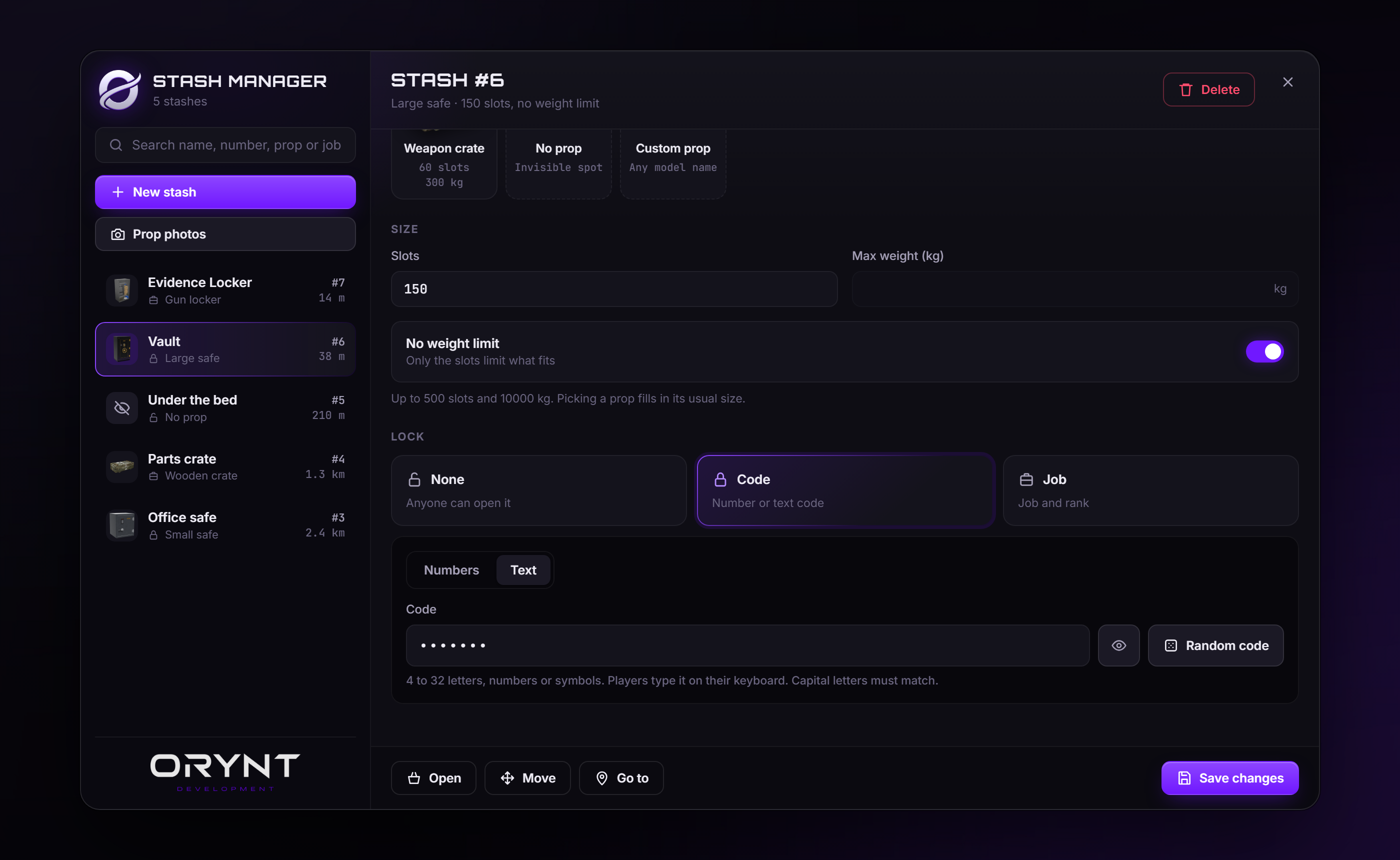
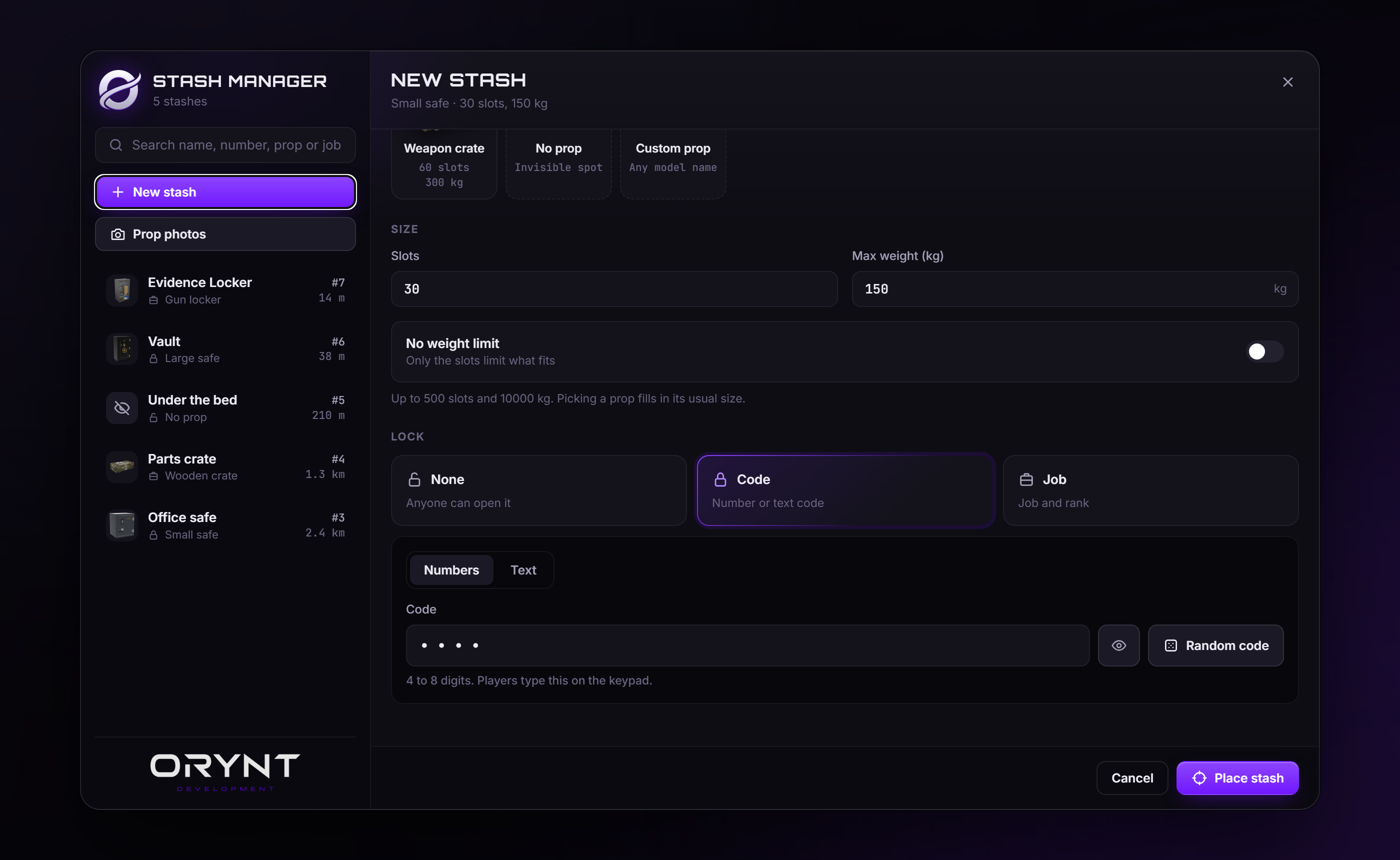
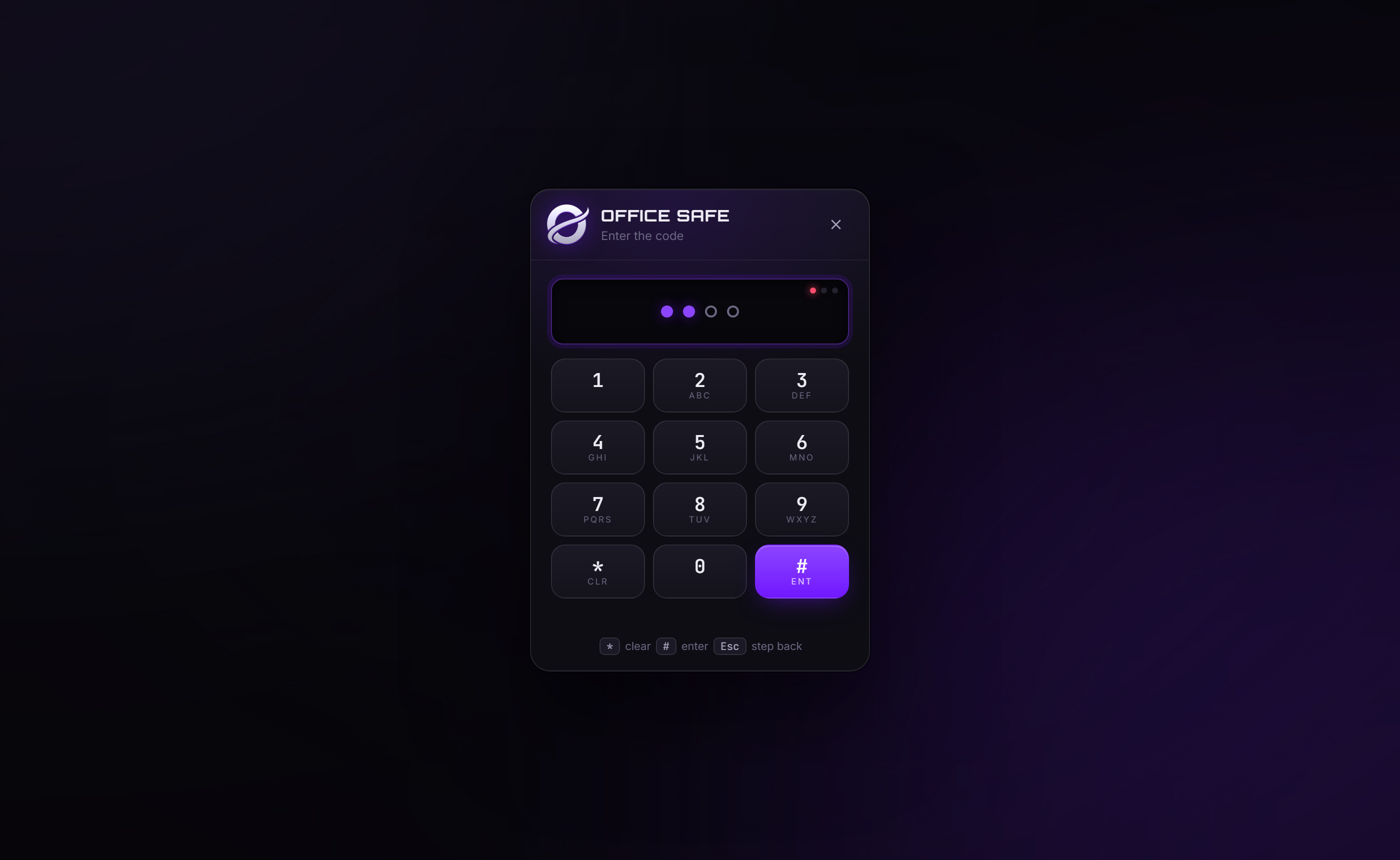
- Locks: no lock, a code, or a job with a lowest rank. Codes are numbers (typed on the keypad) or text (a password typed on the keyboard), with a Random code button for either.
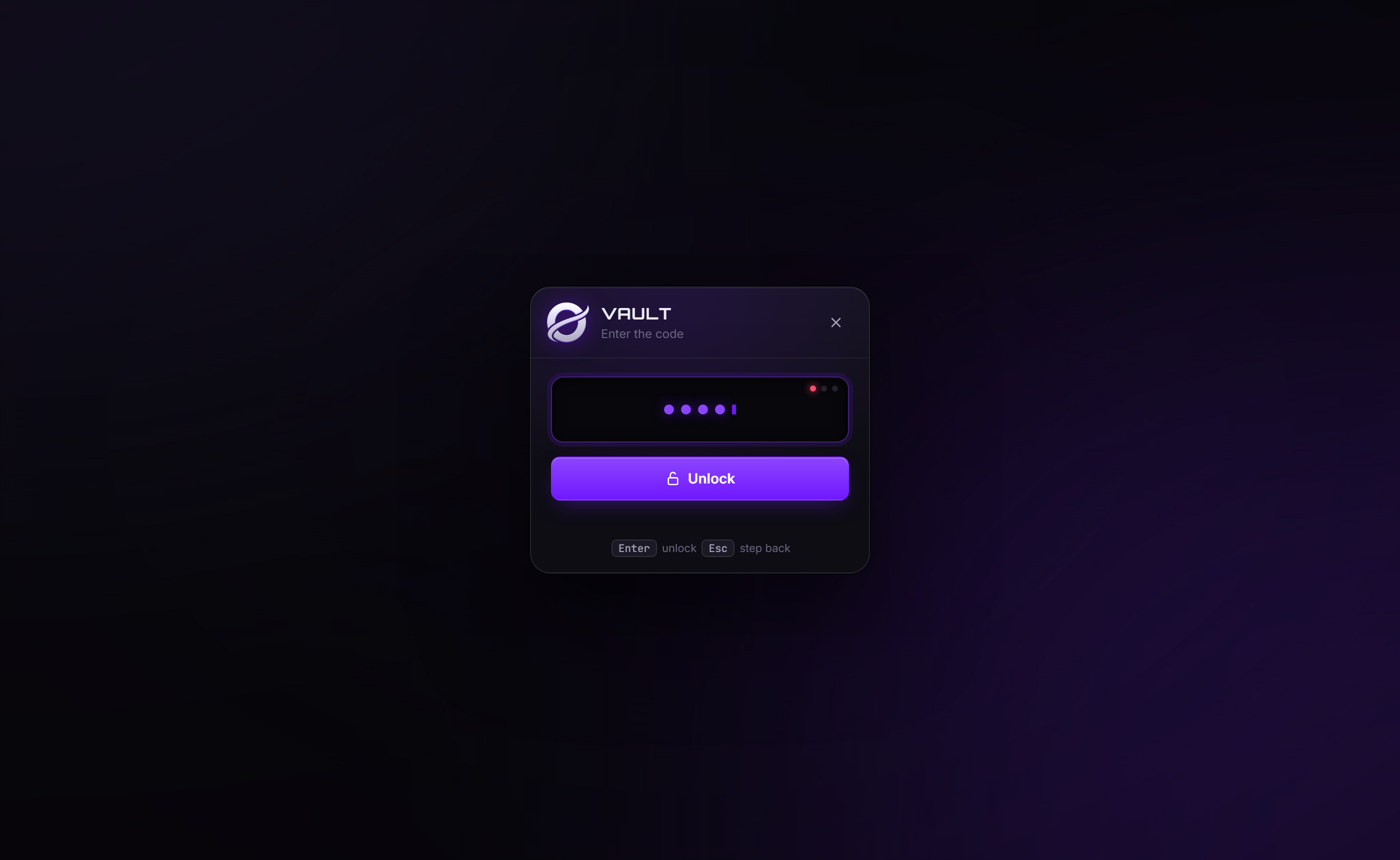
- Stream safe: the keypad only ever shows dots, and keys typed on the keyboard don't light up on the keypad, so players can open their own stash on stream. Codes are hidden in the Stash Manager too, until you click the eye.
- Keypad lockout: wrong codes are counted per character, and too many lock the keypad for a while.
- Safe doors: the handle turns, the bolts drop and the door swings open, with sounds, for everyone nearby.
- Prop photos: one click in the Stash Manager photographs every prop in game (green screen, cut out automatically), so the editor shows what each prop really looks like. Works for props you add yourself too.
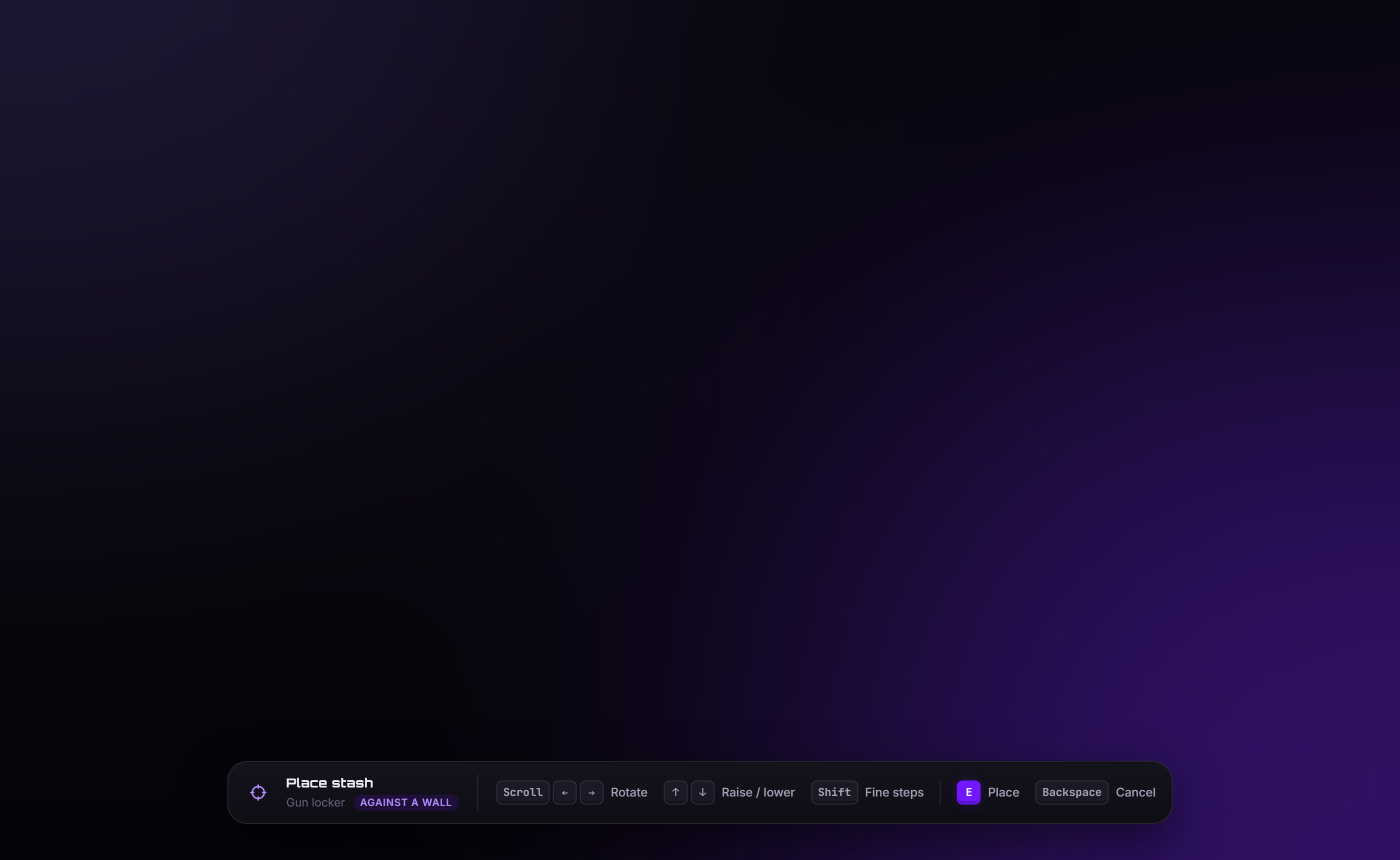
- Placement: a see-through prop follows where you look. Aim at a wall and it backs up flush against it.
- Locked down: stashes only open through this script, only for people who got through the lock, and only while they stand at the stash.
- Logs: optional Discord webhook for placing, editing, moving, deleting, admin opens and keypad lockouts.
- Every text in
locales/, colors and fonts inconfig.lua.
Requirements
- orynt_bridge (free, from Orynt Development): finds your framework
- ESX, QBCore or Qbox (detected automatically)
- ox_lib, oxmysql
- An inventory with stashes, found automatically: ox_inventory (recommended: it also refuses item moves from anyone not standing at the stash), qb-inventory 2.x, tgiann-inventory, origen_inventory or core_inventory
- Optional: ox_target or qb-target (without one, players walk up and press E)
Install
- Put the
orynt_stashesfolder in yourresources. - In
server.cfg, start it after its dependencies:
ensure oxmysql
   ensure ox_lib
   ensure orynt_bridge
   ensure es_extended   # or qb-core / qbx_core
   ensure ox_inventory   # or your inventory
   ensure ox_target      # optional, or qb-target
   ensure orynt_stashes
- Restart the server. The safe models are streamed files, so the first time needs a full restart, not just
ensure.
There is no SQL to run: the orynt_stashes table is made on first start.
Had the old orynt_safes on your server? Start orynt_stashes once and it takes everything over by itself: the
safes keep their place, lock and contents (small 30 slots / 150 kg, medium 60 / 300 kg, large 150 slots / no weight
limit). Then delete the orynt_safes folder, and change orynt_safes.admin to orynt_stashes.admin in your ACEs.
Using it
Type /stashes (or /safes) in game. Only the groups in Config.AdminGroups, or players with the
orynt_stashes.admin ACE, can open it.
Placing a stash
- Choose New stash, give it a name and pick a prop. The size fills in from the prop; change it if you like.
- Pick the lock:
- None: anyone can open it.
- Code: pick Numbers (4 to 8 digits, typed on the keypad) or Text (4 to 32 characters, typed on the
keyboard; capital letters must match, unless you set
Config.Code.caseSensitive = false), then type it or use Random code. The code stays hidden until you click the eye. - Job: pick the job and the lowest rank that may open it. - Choose Place stash. A see-through prop (or a small marker, with no prop) follows where you look. - Look at the floor to set it down there, or at a wall to put it flush against the wall. - Scroll or ←/→ turns it, ↑/↓ raises or lowers it (for shelves and counters), Shift makes small steps. - E places it, Backspace cancels.
Changing a stash
Pick it in /stashes, or third-eye it and choose Manage stash. You can change everything: name, prop, size and
lock. Move places it again, Go to teleports you to it, Open opens it without the lock, and Delete
removes it and wipes what is inside. A stash can only be made smaller if what is inside still fits, and changing
the lock, prop or size closes it on anyone who has it open.
Players
Third-eye the stash and choose Open stash (or Open safe). Number codes show the keypad (click the keys or
type on the keyboard), text codes show a password box; either way only dots are shown. Job locks and unlocked
stashes open straight away. Stashes with no prop are a small invisible spot: set Config.NoProp.marker = true to
show a marker over them.
Saving a custom prop
Pick Custom prop, type the model name, then give it a Name in the list and choose Save to prop list. It's saved with the size you set, the menu steps aside for a second to take its photo, and from then on it's in the prop list for every admin. Hover over a saved prop and click the x to remove it again (stashes that use it keep it).
Prop photos
All props come with photos. To take them again (or after adding props to Config.Props), choose Prop photos
in /stashes: stand outside with
open sky above you and hold still. Each prop is spawned in the air above you, photographed on a green screen and cut
out, which takes a second or two per prop. The photos are saved in html/img/props/ (and in the server KVP) and show
for every admin straight away. Saved props are photographed too. If a photo shows the back of a
prop (GTA props are photographed from the side set in Config.PropFront, 180 by default, which is the front of most of
them), hover over its card and click the turn button (top left): its photo is taken again from the next side (the
back first, then each side). The side you end up with is used when placing too, so it faces you, or faces out from a
wall. screenshot-basic is used if your server
runs it, but it isn't needed.
Config
Everything is in config.lua: framework, admin groups and command, size limits, the prop list, custom props, the
no-prop spot, code length and lockout, distances, safe door timing, sounds, third-eye icons and the UI colors.
Adding a prop: add a line to Config.Props with a key, label, model, an icon for the editor and its usual
slots and weight. The key is saved with each stash, so don't rename a key that stashes already use.
The Discord webhook goes in server/sv_config.lua (server only, never sent to players).
To translate: copy locales/en.lua to e.g. locales/de.lua, change Locales['en'] to Locales['de'], translate
it and set Config.Locale = 'de'.
Files
orynt_stashes/
├── config.lua            Settings and the prop list
├── locales/en.lua        All text
├── server/sv_config.lua  Discord webhook (server only)
├── server/bridge.lua     ESX / QBCore / Qbox
├── server/main.lua
├── client/               Props, safe doors, placement, the UI bridge
├── shared/               Text, props and the safe model data (shared/models.lua is made with the models: leave it)
├── html/                 The Stash Manager and the keypad (html/img/props/: the prop photos)
└── stream/               The three Orynt safes (body, door and handle each) and their textures
The safe models
stream/ holds nine models and one texture file: orynt_safe_s, _m and _l (the bodies, with collision), their
_door and _handle, and orynt_safes.ytd with all textures, including the osf_plate brass badge that says
ORYNT.
If something is off
- "The safe models aren't loaded": the server has not been fully restarted since installing.
- A prop shows as an invisible spot: its model isn't on your server (check the console for the name). The stash
still works; pick another prop in
/stashes. - A safe's handle turns the wrong way: make that size's
spinnegative inConfig.Door. - Players walk through an open safe door: that is on purpose, so nobody gets trapped or shoved by it.
- The menu doesn't open: you're not in
Config.AdminGroupsand don't have theorynt_stashes.adminACE.
Updating
Replace the resource folder with the new version and start it (refresh, then ensure orynt_stashes, or restart the
server). Nothing to copy over:
- Your settings come back by themselves. Every start,
config.lua,server/sv_config.luaand your own translation are copied to the server (its KVP, outside the resource folder). When the new version starts with the files from the download, yours are put back and the resource restarts once to load them. - New options your config doesn't have yet use their defaults, and the console lists them once (the changelog below says what they do).
- Your stashes, saved props and the prop photos you took are saved on the server: they stay (photos are written back into the folder on the first start).
- Changed
server/bridge.lua? The new version's file is used (it may need it), and yours is saved next to it as<file>.before-updateso you can move your changes over. The console says so. - Keep the resource's name (
orynt_stashes): the saved settings belong to it.
To let it restart itself after putting your settings back, add this to server.cfg (without it, the console asks
you to type ensure orynt_stashes once):
add_ace resource.orynt_stashes command.ensure allow
To go back to the default settings on purpose: type orynt_stashes:resetsettings in the server console, put the
files from the download back and restart the resource.
Updating from a version before 1.1.0: those don't save your settings yet, so this one time keep a copy of
your config.lua, server/sv_config.lua and language files, and put them back after replacing the folder. From
1.1.0 on, updates keep them by themselves.
Changelog
- 1.2.0: now runs on orynt_bridge, the free Orynt resource that handles your framework, inventory and third eye for every Orynt script. Install it once (see Installation); your settings and data stay. Works with qb-inventory 2.x, tgiann-inventory, origen_inventory and core_inventory too, and with qb-target or the built-in E prompt (it needed ox_inventory and ox_target before).
- 1.1.0: new Orynt look (Orynt purple, new emblem and wordmark, Orbitron titles, glowing buttons and selection). Updates keep your settings now: replace the folder and your config comes back by itself (see Updating).
- 1.0.0: first release.