
Features
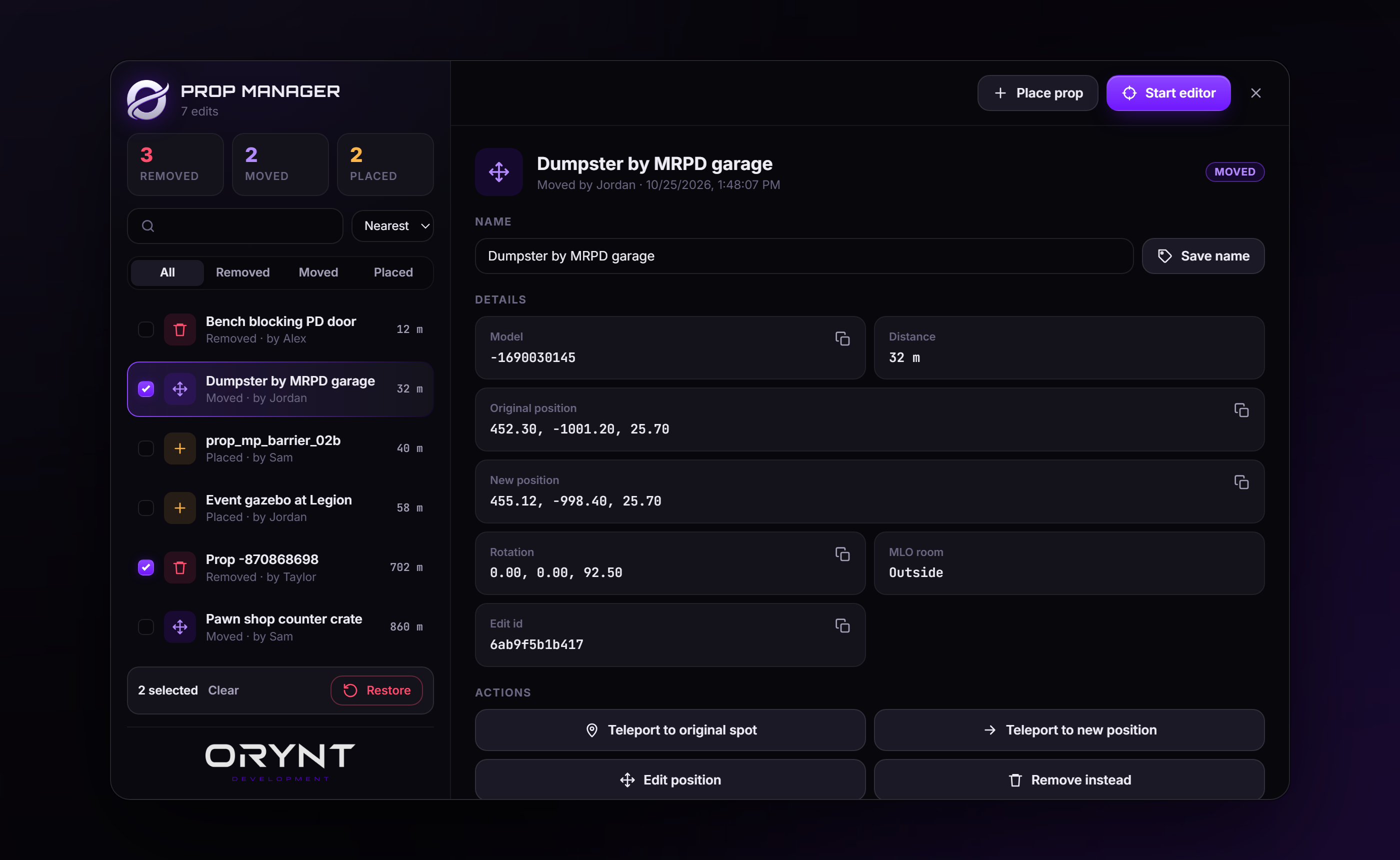
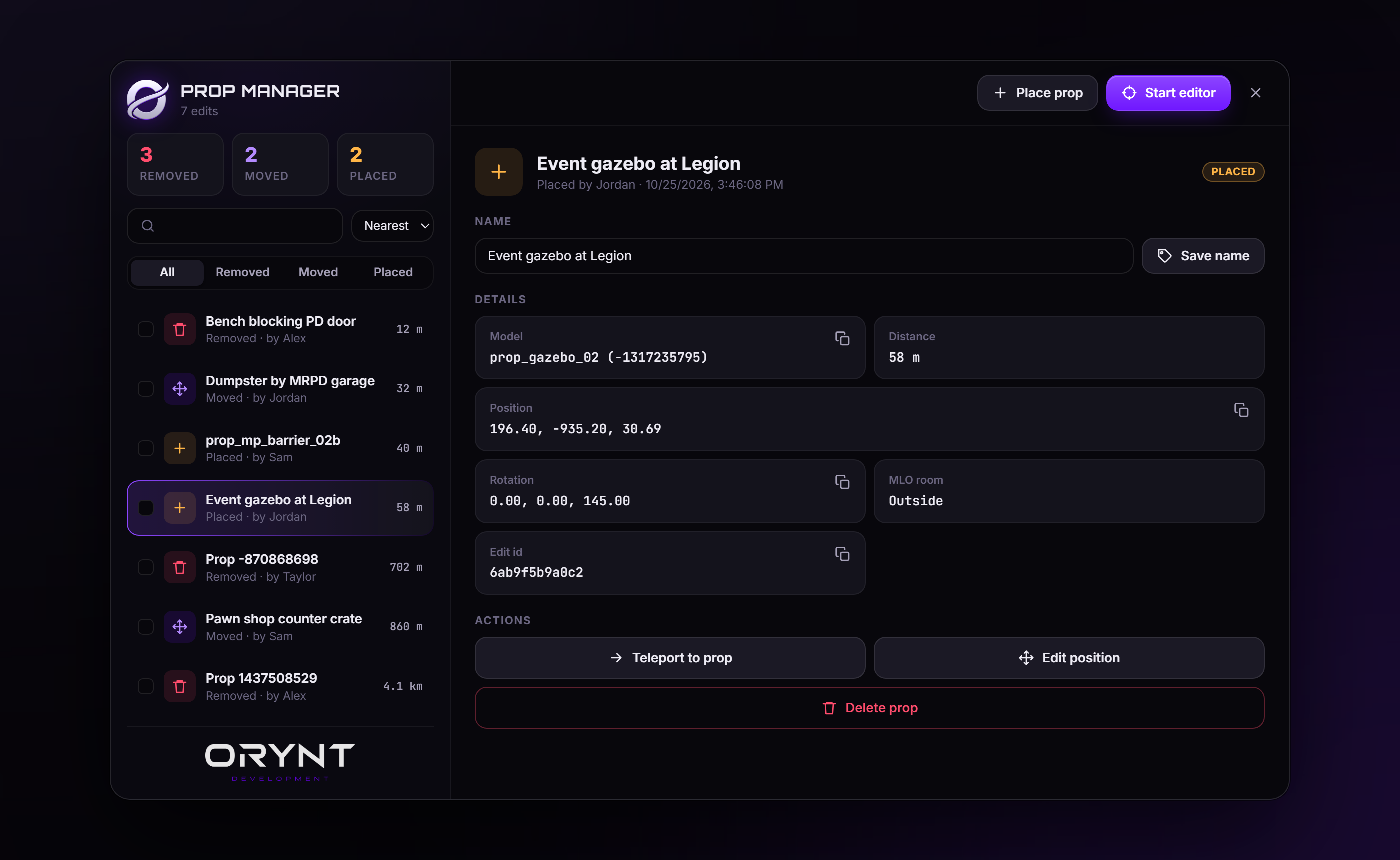
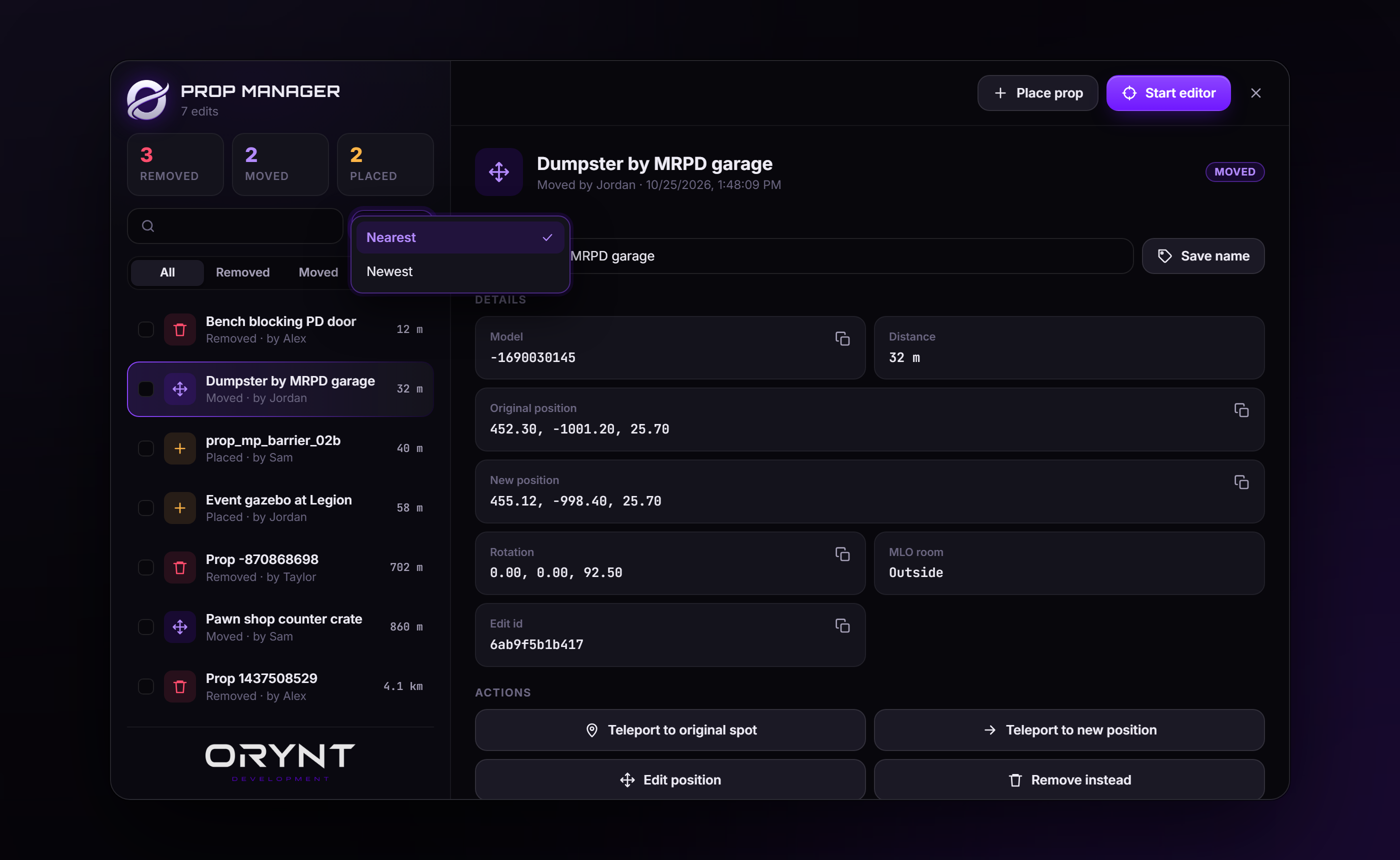
- One command, one menu (/propmanager): every edit in one list with search, filters (all / removed / moved / placed) and sorting (nearest / newest). Shows who made each edit, when, and how far away it is.
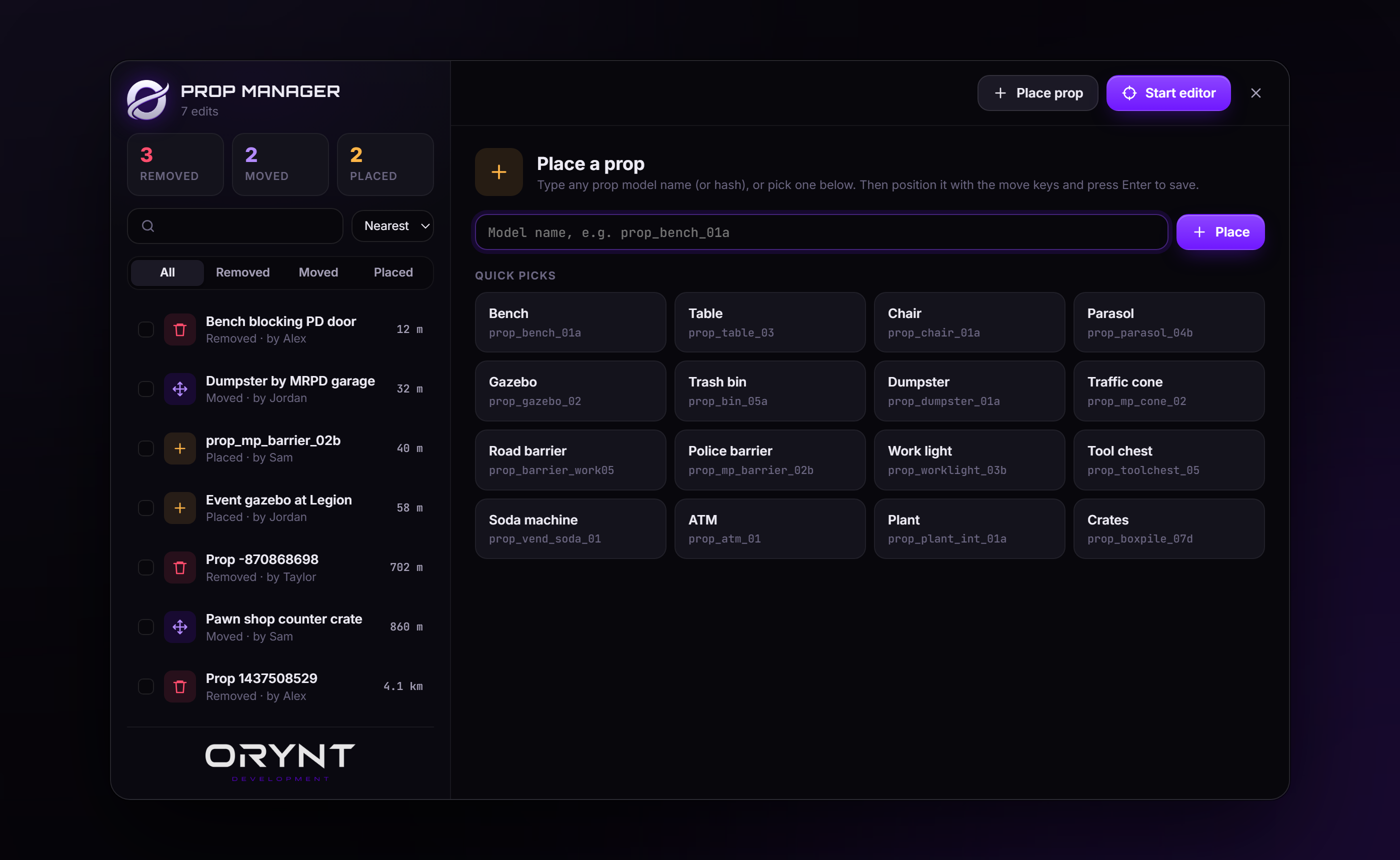
- Place new props: pick from quick picks or type any prop model name, position it with the move keys and save. Placed props are saved and shown to every player like any other edit.
- Teleport to an edit's original spot or to its new position, straight from the manager.
- Name your edits ("Bench blocking the PD door") so staff know why a prop was changed.
- Edit position of a moved prop from the manager: it teleports you there and opens move mode.
- Restore one edit (or delete a placed prop), or select several and undo them all at once.
- Copy model, positions and ids with one click.
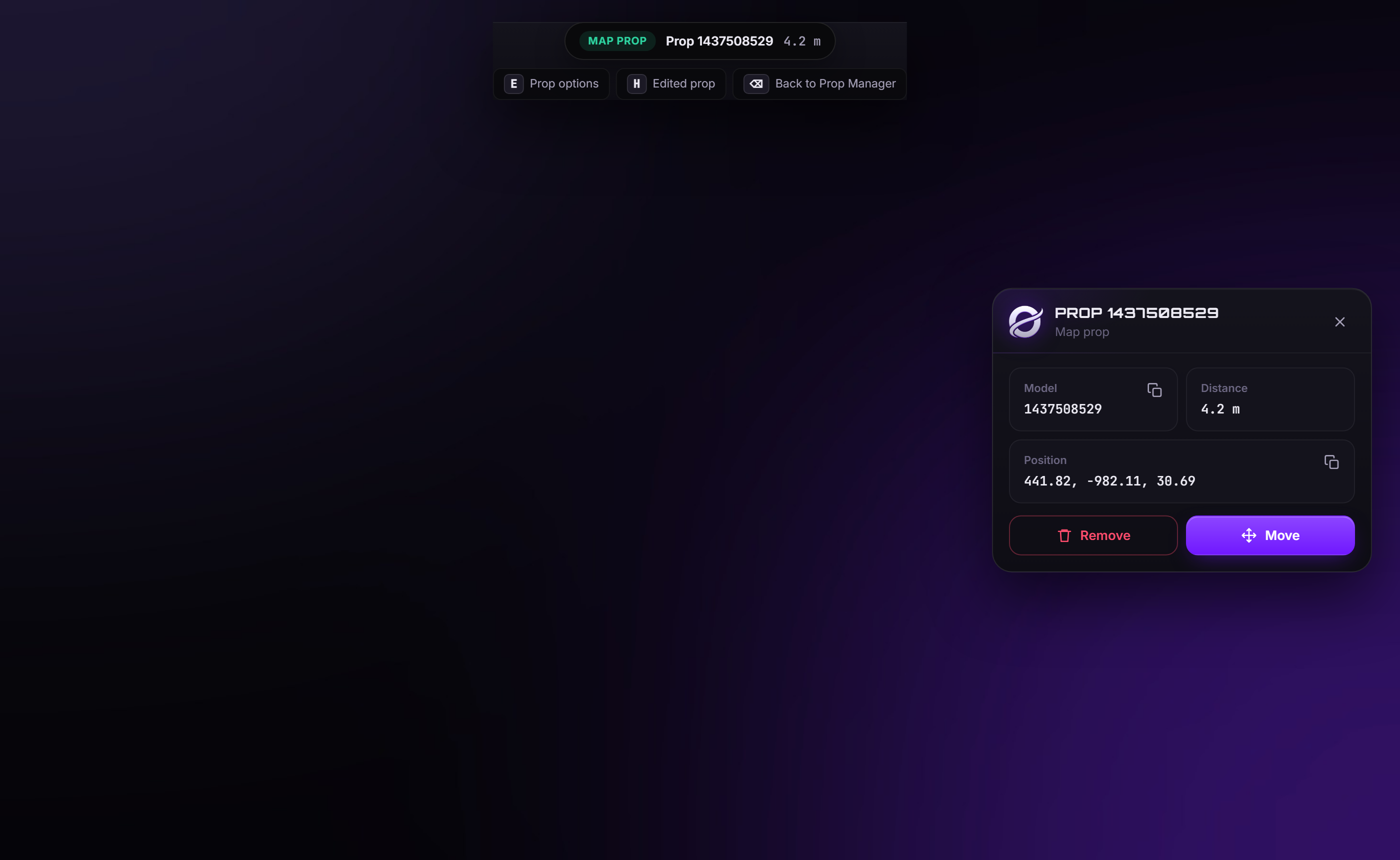
- Aim editor (started from the menu): the prop you aim at is outlined with its type, model and distance. Press E for a panel with every option: remove, move, copy details, open in the manager.
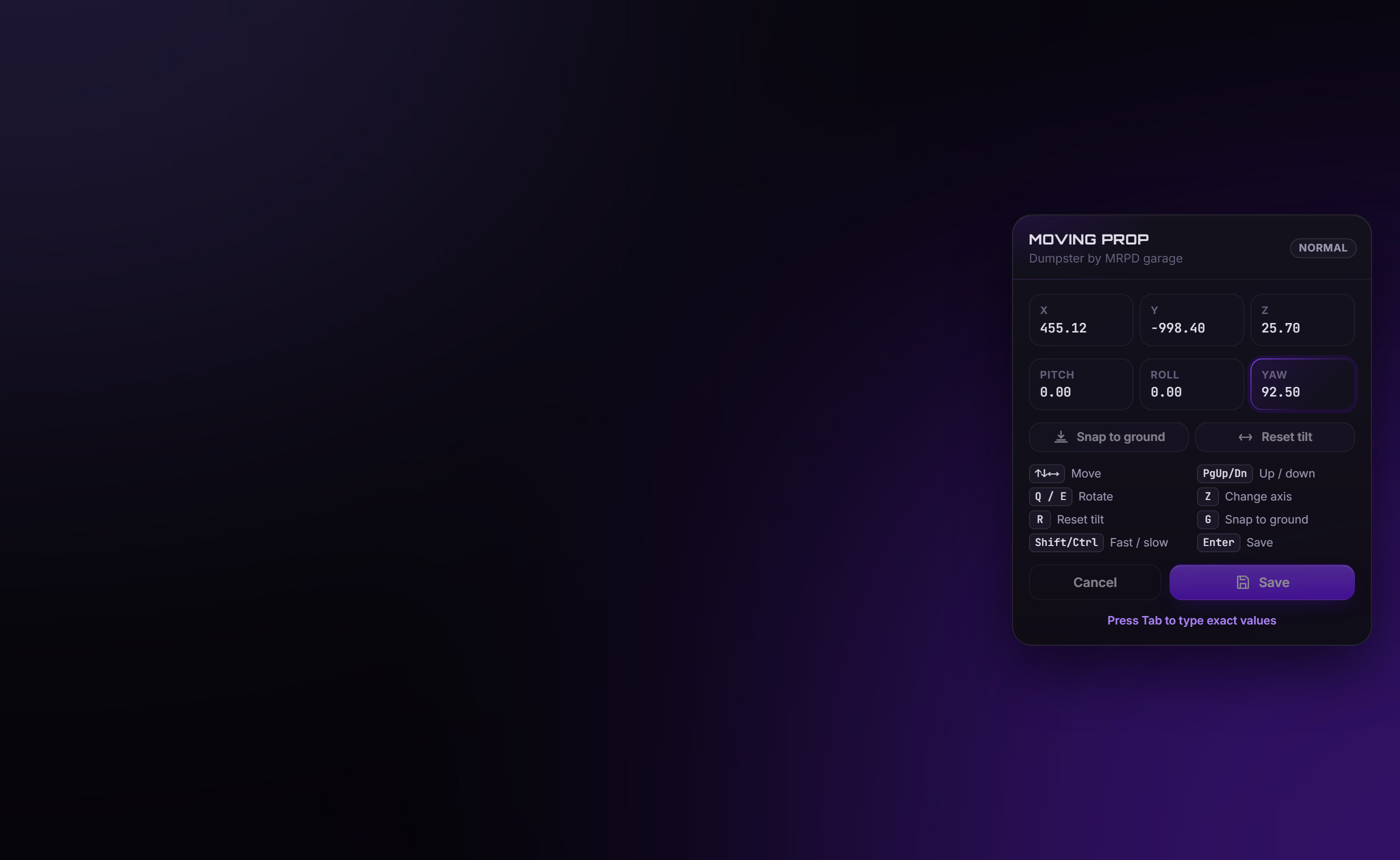
- Move mode panel with live position and rotation, plus Tab to type exact values. Snap to ground, reset tilt, fast / slow movement, all 3 rotation axes.
- Edited-prop markers: removed and moved props leave a marker at their original spot. Aim at it and press H to restore it, teleport or open it in the manager.
- Works on MLO props: interiors keep re-creating their props, so edits are re-applied automatically.
- Safe: props spawned by other scripts are locked, so you can't break another resource's objects.
- Edits apply for everyone and survive restarts. They only stream in near players, so far-away edits cost nothing.
- Works on any server: ESX, QBCore, Qbox or standalone. Only ox_lib is required. No SQL.
- Permissions by ace or framework admin group.
- Discord logs for removes, moves, placed props and restores.
- Fully configurable UI colors, fonts, keys and fully translatable.
Requirements
| orynt_bridge | Required (free, from Orynt Development) |
| ox_lib | Required |
| ESX / QBCore / Qbox | Optional: only used so their admin groups can use the editor |
Files
orynt_propmanager/
├── config.lua            Settings, keys, UI colors (editable)
├── fxmanifest.lua
├── README.md             This file
├── LICENSE.md            Terms of use
├── locales/
│   └── en.lua            All text (editable, copy to translate)
├── shared/
│   └── text.lua          Loads the language
├── client/
│   └── main.lua          Editor, move mode, applying edits
├── server/
│   ├── sv_config.lua     Discord and console logs (editable, server only)
│   ├── logs.lua          Discord webhook sender
│   └── main.lua          Saving edits, permissions
└── html/                 Prop Manager and editor panels (UI)
Files marked editable stay readable when the resource is escrowed.
Installation
- Put the
orynt_propmanagerfolder in yourresourcesfolder.Don't rename the folder. Saved edits are stored under the resource name. A renamed folder starts empty.
- In
server.cfg, after ox_lib:cfg ensure ox_lib ensure orynt_bridge ensure orynt_propmanager - Permissions: admins in your framework's
admin,superadminorgodgroup can already use it. To give access by ace instead (or as well, and on standalone servers):cfg add_ace group.admin orynt_propmanager.admin allow - Restart the server, or type
refreshand thenensure orynt_propmanager. You should see:[Orynt Prop Manager] Loaded 0 prop edit(s)
Coming from CarrotPropRemover or an older version? Copy your old data/props.json into
orynt_propmanager/data/props.json before the first start. The edits are imported once, then you can delete the file.
Prop Manager (/propmanager)
/propmanager is the only command. Everything else is done from this menu.
- Counts of removed, moved and placed props.
- Search by name, model, edit id or staff name. Sort: Nearest / Newest.
- Filter: All / Removed / Moved / Placed.
- Tick the boxes to select several edits, then Restore them all at once (with a confirmation). Placed props in the selection are deleted.
Top buttons - Place prop opens the place view (see Placing props). - Start editor closes the window and turns on the aim editor (press Backspace there to come back).
Pick an edit to see: - Name: type a name (max 40 characters) and press Save name. Everyone with access sees it. - Details: model, distance, original position, new position and rotation (moved props), MLO room, edit id. The copy buttons copy a value to your clipboard. - Actions: - Teleport to original spot / Teleport to new position (placed props: Teleport to prop) - Edit position (moved and placed props): teleports you there and opens move mode, then brings you back here - Remove instead (moved props): turns the move into a remove - Restore original: the map prop comes back for every player (with a confirmation) - Delete prop (placed props): removes it for every player (with a confirmation)
Press Esc or the close button to close the window. The list updates live when other staff make changes.
Placing props
- In the Prop Manager, click Place prop.
- Click one of the quick picks, or type any prop model name (e.g.
prop_bench_01a) or hash and press Place. Typing also filters the quick picks. - The prop appears on the ground in front of you, in move mode. Position it (see Move mode) and press Enter to save, or Backspace to cancel.
- You're taken back to the Prop Manager with the new prop selected, so you can name it.
Placed props show amber in the list. Change the quick picks in Config.PlaceProps. A model that doesn't exist (or a
vehicle) shows "That prop model doesn't exist". Placed props are local objects that every player spawns for themselves,
so they cost no network entities.
Aim editor
In the Prop Manager, press Start editor. Press Backspace to go back to the Prop Manager. A crosshair appears, and a bar at the top shows the prop you aim at with its type, model and distance.
| Key | |
|---|---|
| E | Options for the prop you aim at |
| H | Options for an edited prop (aim at its marker) |
| Backspace | Back to the Prop Manager |
The prop panel (E) shows the model and position (with copy buttons) and the options: - Map prop: Remove or Move. - Moved prop (one you moved earlier): Remove, Move again, Open in manager, Restore original. - Placed prop: Move again, Open in manager, Delete prop. - Script prop (locked): spawned by another resource. Change it in that resource instead.
Edited-prop markers: removed props can't be aimed at, so every edit within Config.RestoreDistance shows a marker
at its original spot (red = removed, blue = moved). Aim at it and press H to teleport to its original spot, open
it in the manager or restore it.
Move mode
Opens from the prop panel (Move), the manager (Edit position) or when placing a prop. A panel shows the live position and rotation.
| Key | |
|---|---|
| Arrow keys | Move forward / back / left / right (relative to the camera) |
| Page Up / Page Down | Move up / down |
| Q / E | Rotate on the current axis |
| Z | Change the rotation axis (pitch, roll, yaw) |
| R | Reset the tilt (pitch and roll) |
| G | Snap to the ground |
| Shift / Ctrl | Fast / slow |
| Tab | Type exact values (press Tab again to go back to the keys) |
| Enter | Save |
| Backspace | Cancel |
Exact values: press Tab and the mouse is freed. Click X / Y / Z / Pitch / Roll / Yaw, type a number and the prop jumps there. The Snap to ground, Reset tilt, Save and Cancel buttons work too.
Configuration (config.lua)
1. Commands and permissions
| Option | Default | |
|---|---|---|
Config.Command |
'propmanager' |
Opens the Prop Manager (the only command) |
Config.AdminAce |
'orynt_propmanager.admin' |
Ace that gives access |
Config.AdminGroups |
{ 'admin', 'superadmin', 'god' } |
ESX / QBCore / Qbox groups that give access |
2. Editor
| Option | Default | |
|---|---|---|
Config.MaxAimDistance |
50.0 |
How far you can target props |
Config.SnapRadius |
2.0 |
Props without collision: the nearest prop this close to where you aim is picked |
Config.RestoreDistance |
30.0 |
Edited-prop markers show for edits this close |
Config.MoveStep |
0.02 |
Move mode: meters per frame (x5 Shift, x0.2 Ctrl) |
Config.RotateStep |
1.0 |
Move mode: degrees per frame |
Config.Colors |
Orynt blue / red | In-world outline, crosshair and marker colors |
Config.PlaceProps |
16 common props | Quick picks in the Place prop view: { model = 'prop_name', label = 'Name' } |
3. Applying edits
| Option | Default | |
|---|---|---|
Config.StreamDistance |
300.0 |
Edits are applied when a player is this close |
Config.HideRadius |
0.5 |
Radius used to hide the original prop (keep small so identical neighbours stay) |
Config.EnforceDistance |
100.0 |
Within this distance hidden props are re-checked every second (for MLO props) |
4. Keys
Config.Keys: every editor and move-mode key (control ids).
Config.KeyLabels: how each key is shown in the UI. If you change a key, change its label too.
5. Language, notifications and UI
| Option | |
|---|---|
Config.Locale |
Language file in locales/ (default 'en') |
Config.Notify |
Notification title and position |
Config.UI.colors |
Every UI color: accent, danger, success, warn, text shades, backgrounds, borders. Any CSS color works; see-through shades are worked out automatically |
Config.UI.backdropOpacity |
How much the game is dimmed behind the Prop Manager (0 to 1) |
Config.UI.font / headingFont / monoFont |
Fonts for text, window titles and numbers |
Config.UI.radius |
Corner rounding in px |
Server configuration (server/sv_config.lua)
Never sent to players, so webhook links stay private.
| Option | Default | |
|---|---|---|
SvConfig.ConsoleLogs |
false |
Also print every remove / move / place / restore in the server console |
SvConfig.Logs.enabled |
false |
Send Discord logs |
SvConfig.Logs.webhook |
'' |
Webhook for every log type... |
SvConfig.Logs.webhooks |
all '' |
...unless a type has its own here (remove, move, place, restore) |
SvConfig.Logs.events |
all true |
Turn log types on / off |
SvConfig.Logs.colors |
Embed color per type | |
SvConfig.Logs.username / avatar |
Webhook name and picture | |
SvConfig.Logs.identifiers |
{ 'license', 'discord' } |
Identifiers shown on each log |
Discord logs
- In Discord: Server Settings → Integrations → Webhooks → New Webhook, pick the channel, Copy Webhook URL.
- In
server/sv_config.lua, paste it intoSvConfig.Logs.webhookand setenabled = true. - Optional: a webhook per channel in
webhooks(remove,move,place,restore). ensure orynt_propmanager.
Each log shows who did it, the prop model, the edit id and the positions. Keep webhook links private.
Translating
All text, including the whole UI, is in locales/en.lua. Copy it to e.g. locales/de.lua, change Locales['en'] to
Locales['de'], translate it (keep the words in {braces}), set Config.Locale = 'de', then refresh and
ensure orynt_propmanager. Anything left out falls back to English.
Saved data
Edits are saved in the server's resource storage (KVP), not in a database: one entry per edit. They survive restarts and updates.
- Saved data belongs to the resource name
orynt_propmanager: don't rename the folder. - To undo everything, open the Prop Manager, select the edits and restore them.
Other resources can read the edits with exports.orynt_propmanager:GetEdits().
Updating
Replace the resource folder with the new version and start it (refresh, then ensure orynt_propmanager, or restart the
server). Nothing to copy over:
- Your settings come back by themselves. Every start,
config.lua,server/sv_config.luaand your own translation are copied to the server (its KVP, outside the resource folder). When the new version starts with the files from the download, yours are put back and the resource restarts once to load them. - New options your config doesn't have yet use their defaults, and the console lists them once (the changelog below says what they do).
- Your prop edits are saved on the server, not in the resource folder: they stay.
- Keep the resource's name (
orynt_propmanager): the saved settings belong to it.
To let it restart itself after putting your settings back, add this to server.cfg (without it, the console asks
you to type ensure orynt_propmanager once):
add_ace resource.orynt_propmanager command.ensure allow
To go back to the default settings on purpose: type orynt_propmanager:resetsettings in the server console, put the
files from the download back and restart the resource.
Updating from a version before 1.1.0: those don't save your settings yet, so this one time keep a copy of
your config.lua, server/sv_config.lua and language files, and put them back after replacing the folder. From
1.1.0 on, updates keep them by themselves.
Changelog
- 1.2.0: now runs on orynt_bridge, the free Orynt resource that handles your framework (admin groups) for every Orynt script. Install it once (see Installation); your settings and data stay.
- 1.1.0: the new Orynt look: purple theme, Orbitron titles, the new Orynt logo and wordmark, purple checkboxes and dropdowns, purple outline, crosshair and restore markers in the editor, purple Discord logs. Updates keep your settings now: replace the folder and your config comes back by itself (see Updating).
Troubleshooting
| Problem | Fix |
|---|---|
| "You don't have permission" | Add the ace (see Installation) or check your framework group |
| A prop can't be selected | It may have no collision: aim right at it (within Config.SnapRadius) |
| "Script prop (locked)" | Another resource spawned it. Change it in that resource |
| Can't click the move panel | Press Tab first to free the mouse |
| "That prop model doesn't exist" | Check the spelling of the model name (e.g. on a prop list site), or use its hash |
| "Could not find the moved prop here" | The area didn't load in time after teleporting. Wait a second and press Edit position again |
| A removed MLO prop flickers back | Raise Config.EnforceDistance a little |
| Removing one prop also hid an identical one right next to it | Lower Config.HideRadius |
| Edits don't show far away | They only apply within Config.StreamDistance of a player (on purpose, for performance) |
attempt to index a nil value (global 'Locales') |
refresh, then ensure orynt_propmanager |
Console: Discord log failed (HTTP 4xx) |
The webhook link is wrong or was deleted |
Escrow and license
When escrowed, config.lua, server/sv_config.lua and locales/ stay readable so you can configure and translate
it. See LICENSE.md for the terms of use. In short: use it on your own servers; don't resell, share or leak it;
keep the Orynt Development branding.
© Orynt Development