
Features
- Works with any setup: ESX, QBCore, Qbox or no framework; ox_inventory, qs-inventory, qb-inventory and more, or ESX's inventory; ox_target, qb-target or a built-in "press E" prompt. All detected automatically.
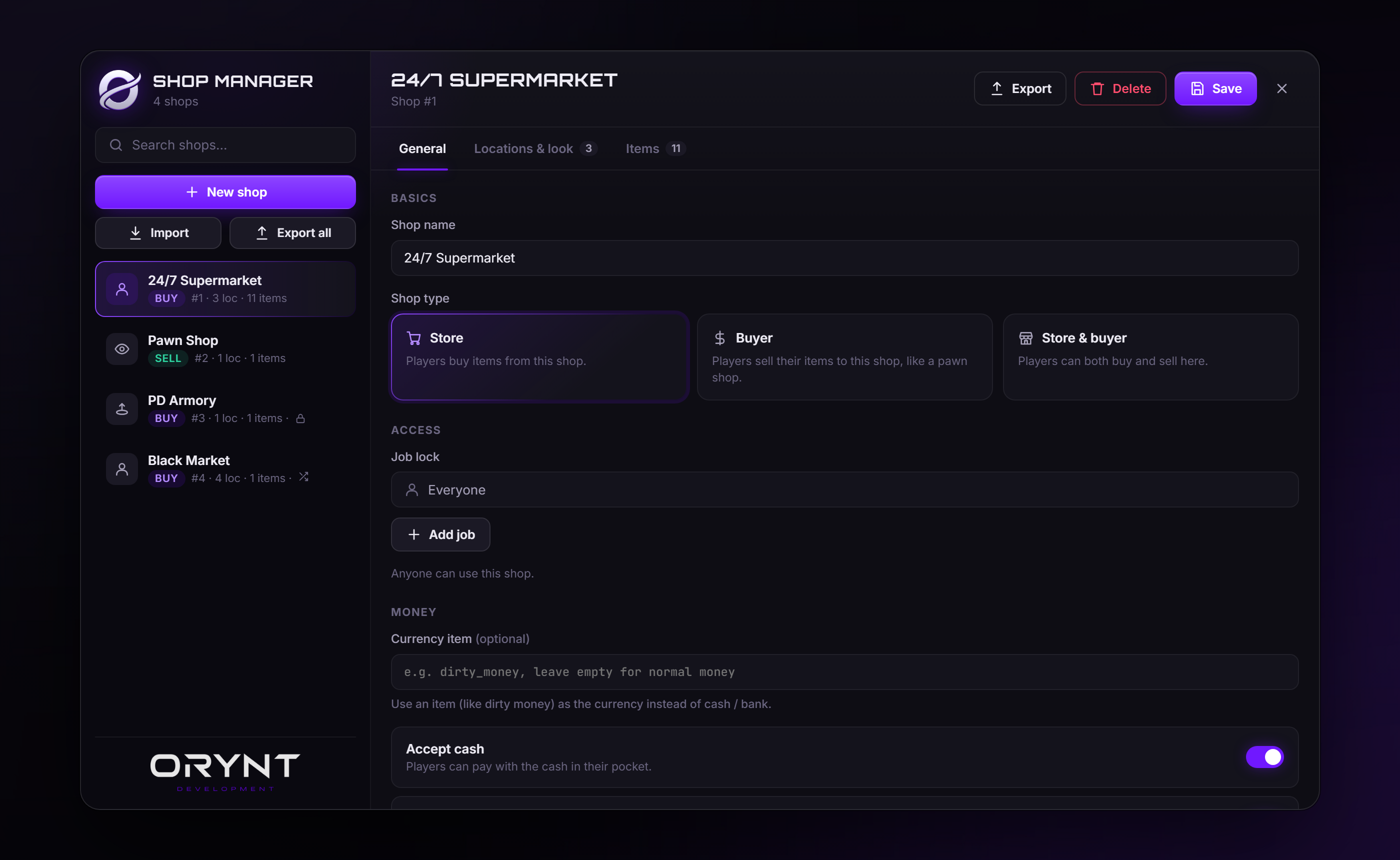
- In-game Shop Manager (/shopadmin): create shops, aim to place them, pick items from your inventory, set prices, teleport between locations. Admins can also third-eye any shop and pick Edit shop.
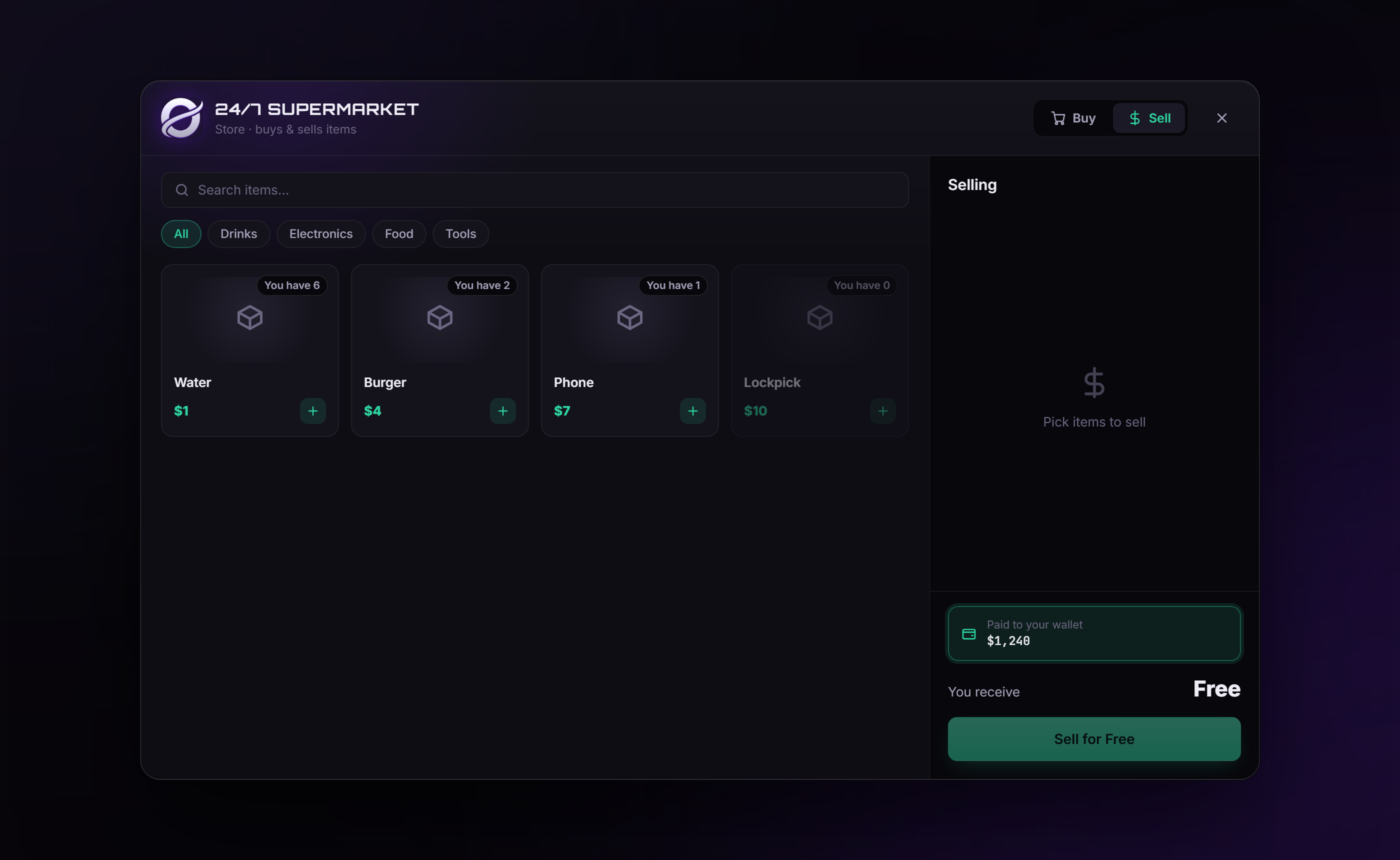
- Store, buyer or both: players buy from it, sell to it (pawn shop), or both.
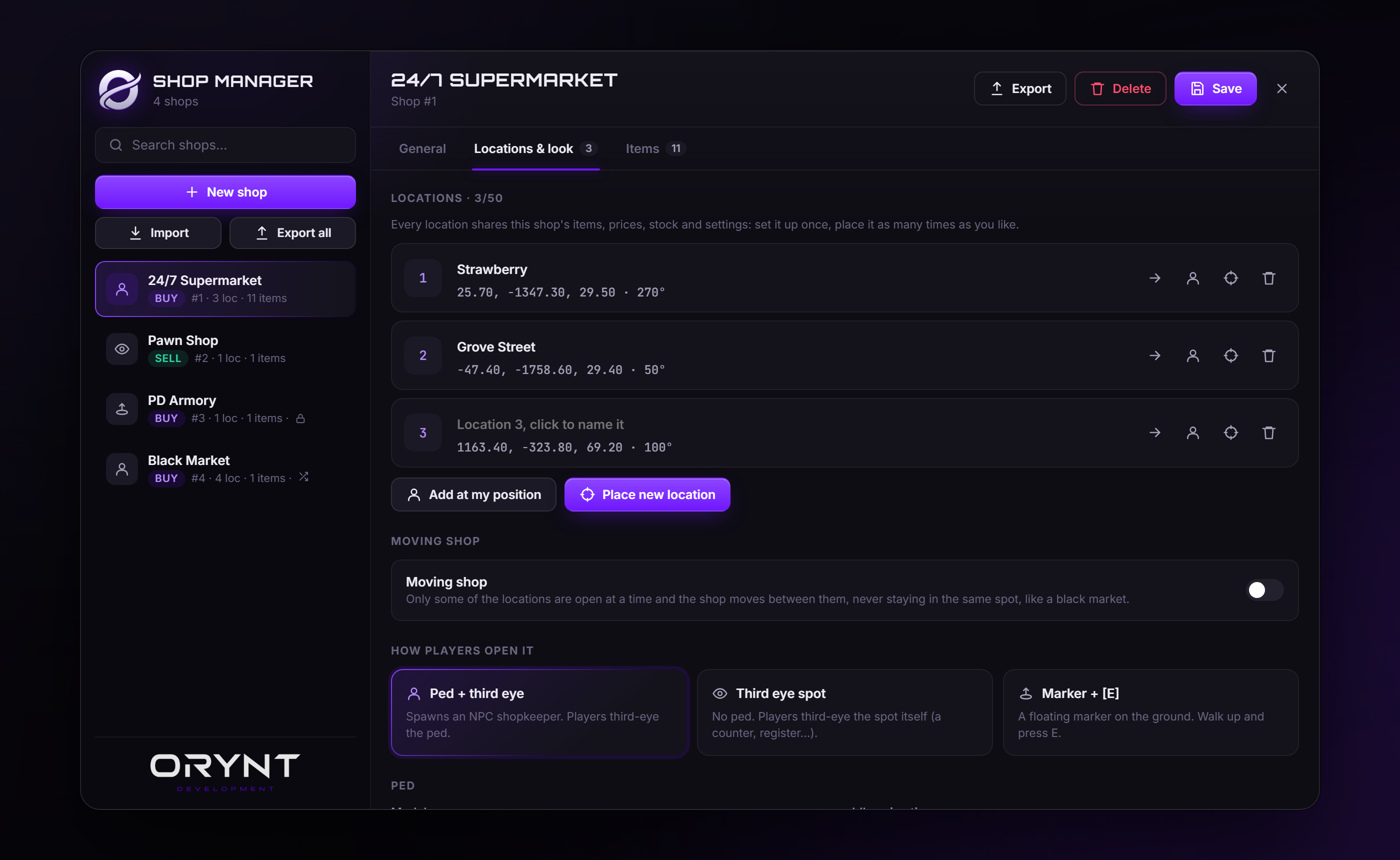
- Many locations per shop: up to 50 locations share one set of items, prices, stock and settings.
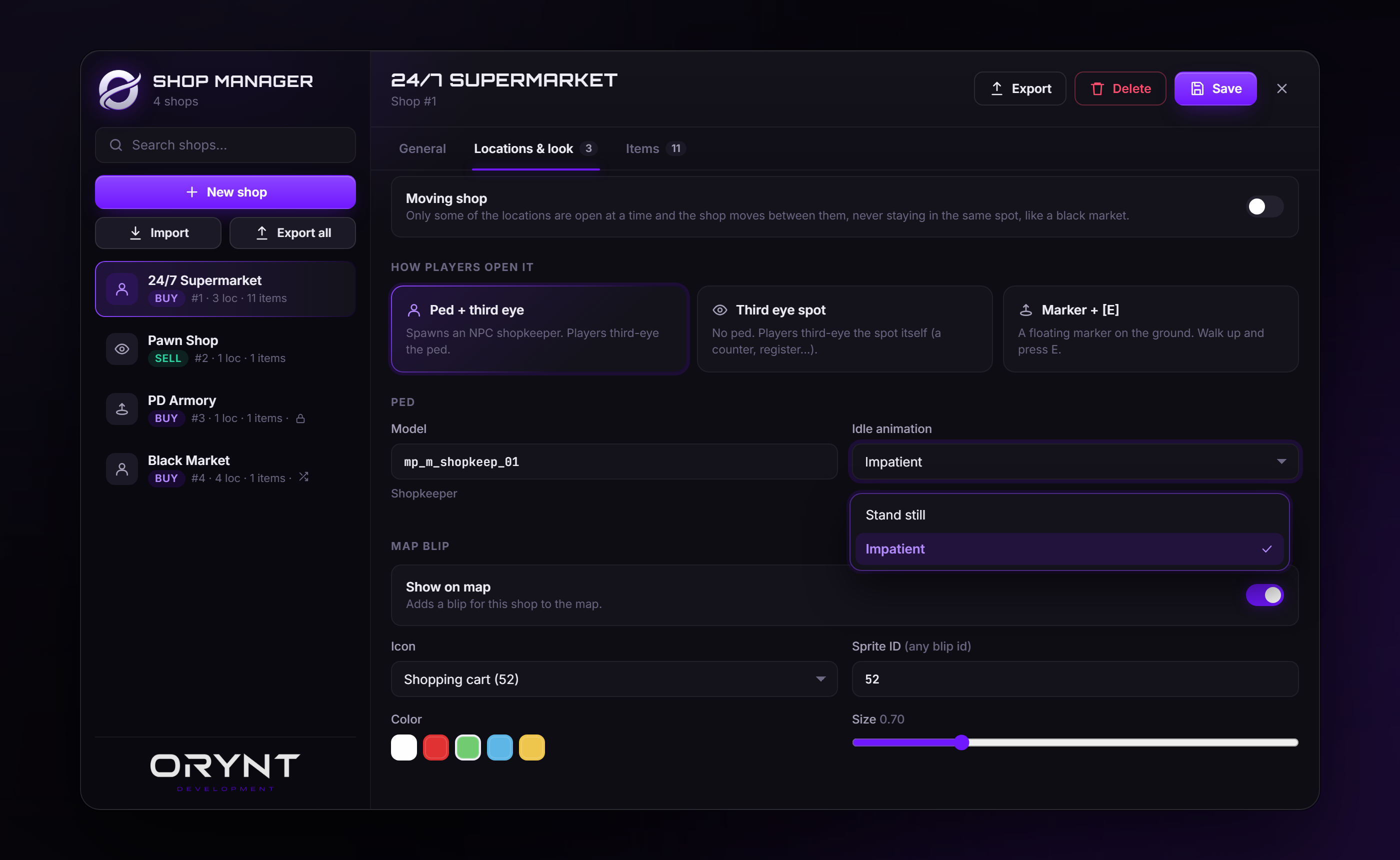
- Three ways to open: an NPC shopkeeper with third eye, a third-eye spot, or a floating marker with [E].
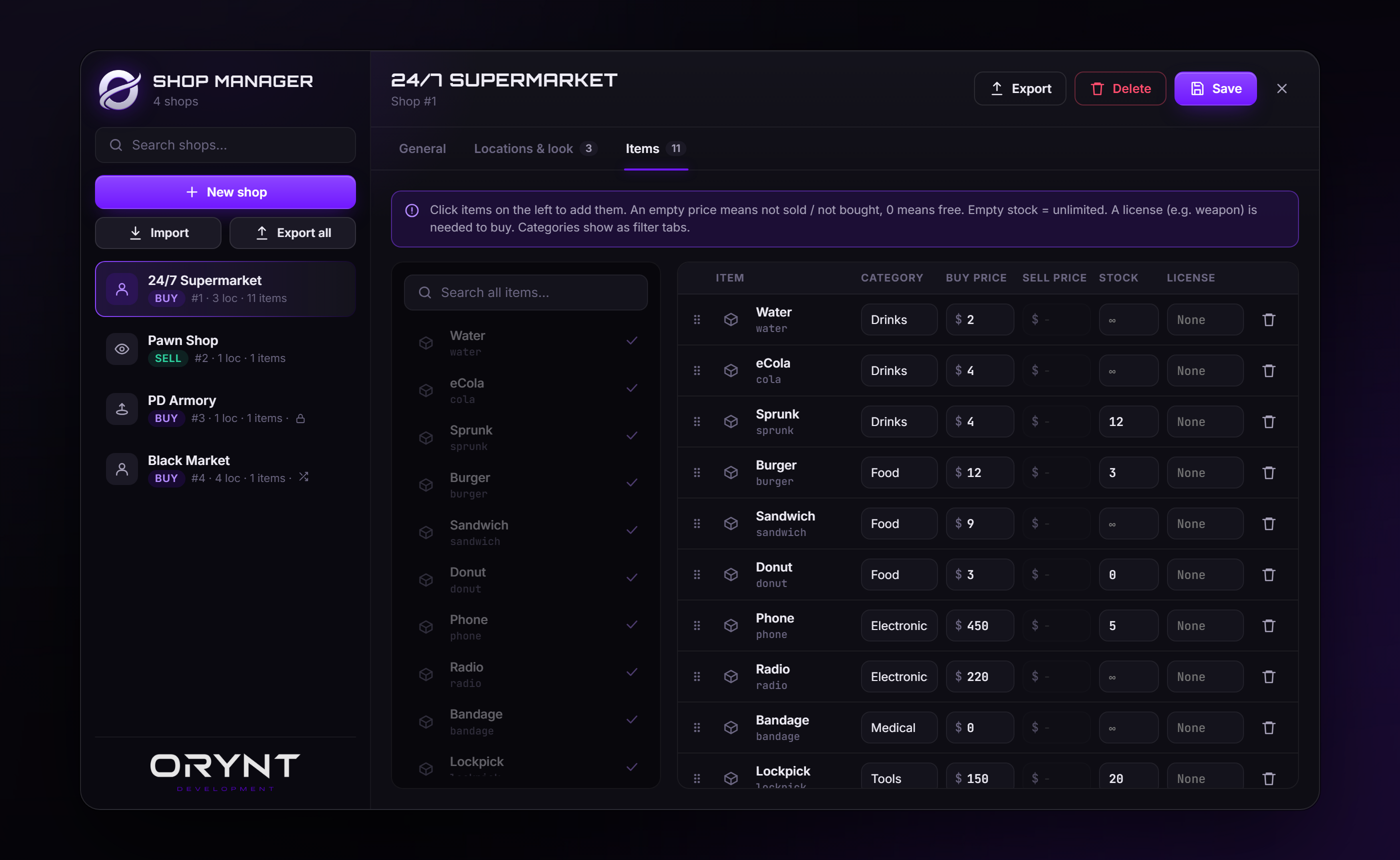
- Per item: buy price, sell price, limited stock, category tabs, and a required license (e.g. weapon).
- Payment: cash, bank, or an item as currency (e.g. dirty money). Choose where money from selling goes.
- Job locks for one or more jobs, each with its own minimum grade: only those jobs see the blip and can open the shop.
- Moving shops: black markets that open at only some of their locations and move every restart or on a timer. Players are only ever sent the open locations.
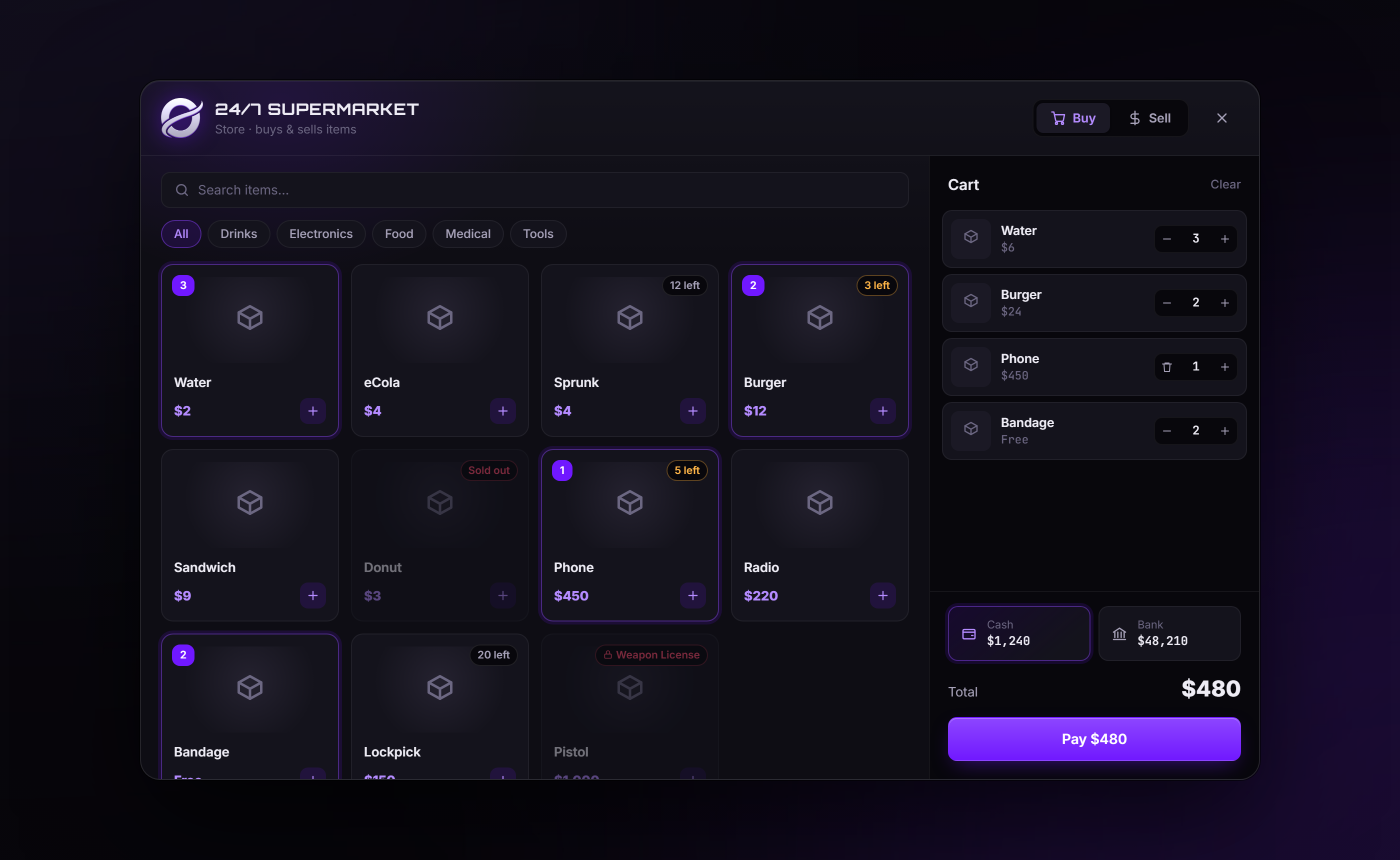
- Clean shop window: search, category filters, a cart, stock and license badges, cash / bank balances.
- Secure: every purchase and sale is checked on the server (distance, job, license, stock, price, money, carry weight), one at a time per player, with automatic refunds if the items don't fit.
- ox_inventory importer: copy your existing ox_inventory shops in with
/shopimport(or a console command). - Export / import: save all your shops (or one) to a file and load them on another server, or keep a backup.
- No SQL: shops are saved on the server automatically.
- Discord logs for purchases, sales and admin changes, with a separate channel per log type.
- Fully translatable and customisable look (colors, fonts, icons, notifications).
Requirements
| Required | Supported | Without one | |
|---|---|---|---|
| Bridge | orynt_bridge (free, from Orynt Development) | Required: finds your framework, inventory and third eye | |
| Library | ox_lib | Required | |
| Framework | ESX, QBCore, Qbox | Works standalone: cash is an item, no bank, no jobs or licenses | |
| Inventory | any inventory orynt_bridge supports (ox, qs, codem, tgiann, origen, core, qb, ps, lj) or the framework's own | ox_inventory is needed when there's no framework | |
| Third eye | ox_target, qb-target | Built-in prompt: walk up and press E | |
| Licenses | ESX (esx_license), QBCore / Qbox (metadata.licences) |
Licensed items can't be bought without a framework |
Files
orynt_shops/
├── config.lua            Settings (editable)
├── fxmanifest.lua
├── README.md             This file
├── LICENSE.md            Terms of use
├── locales/
│   └── en.lua            All text players and staff see (editable, copy to translate)
├── shared/
│   └── text.lua          Loads the language
├── client/
│   ├── main.lua          Peds, blips, markers, opening shops
│   ├── placement.lua     The aim-to-place tool in the Shop Manager
│   └── target.lua        ox_target / qb-target / built-in prompt (editable)
├── server/
│   ├── sv_config.lua     Discord and console logs (editable, server only)
│   ├── bridge.lua        Framework, inventory, money, jobs, licenses (editable)
│   ├── storage.lua       Saving shops
│   ├── logs.lua          Discord webhook sender
│   ├── import.lua        ox_inventory importer
│   └── main.lua          Shops, purchases, sales, Shop Manager
├── html/                 The shop window and the Shop Manager
└── exports/              Shop exports (Export in the Shop Manager / shopexport)
Files marked editable stay readable when the resource is escrowed.
Installation
- Put the
orynt_shopsfolder in yourresourcesfolder.Don't rename the folder. Saved shops are stored under the resource name. A renamed folder starts empty.
- In
server.cfg, start it after ox_lib and your framework, inventory and target: ```cfg ensure ox_lib ensure orynt_bridge ensure es_extended # or qb-core / qbx_core ensure ox_inventory # if you use it ensure ox_target # or qb-target
ensure orynt_shops
3. Permissions: admins in your framework's `admin`, `superadmin` or `god` group can already use /shopadmin.
   To give access by ace instead (or as well):
cfg
add_ace group.admin orynt_shops.admin allow
4. Restart the server, or type `refresh` and then `ensure orynt_shops` in the server console. You should see:
[Orynt Shops] framework: esx, inventory: ox_inventory
[Orynt Shops] Loaded 0 shop(s)
```
Orynt Shops can run next to other shop scripts. If you replace one (e.g. esx_shops, qb-shops), stop it so the same shop doesn't show twice.
Importing your ox_inventory shops
Already have shops in ox_inventory's data/shops.lua? Copy them in with one command:
- In-game: type /shopimport. It shows how many shops ox_inventory has, how many are new and how many are already here, and asks you to confirm before importing.
-
Server console:
orynt_shops_import(imports straight away). -
Peds, scenarios, headings, blips, job locks, payment, prices and licenses carry over.
- Shops whose name already exists are skipped, so it's safe to run again.
- Prop based shops (like vending machines) have no fixed location and stay in ox_inventory.
- Anything that couldn't carry over is listed in the console (F8 when you use /shopimport).
Afterwards, remove those shops from ox_inventory's data/shops.lua so they don't show twice.
Exporting and importing shops
Move shops between servers (e.g. a test server and your live server), share a setup, or keep a backup.
Export in the Shop Manager: Export all (under New shop) or Export on an open shop. The export is shown to
copy, and is also saved on the server as orynt_shops/exports/shops-2026-10-16-153000.json (one shop:
shop-<id>-....json). Server console: shopexport.
Import in the Shop Manager: Import, then paste an export, or type the name of a file in orynt_shops/exports/
(copy an export from another server into that folder). Pick what happens to shops that already exist (same name):
| Add as new | Keep both |
| Skip | Keep yours, only add shops you don't have |
| Replace | Overwrite yours with the imported ones |
Server console: shopimportfile <file> [add|skip|replace].
Every imported shop is checked like a shop saved in the editor. Items that don't exist on this server are left out (listed in the notes), and a shop that can't be used (e.g. no locations) isn't imported. Exports from older versions import fine.
Making your first shop
- Type /shopadmin and click New shop.
- General: name it, pick the type (Store / Buyer / Both), and set the payment.
- Locations & look: click Place new location, aim at the spot and press E (or Add at my position). Pick how players open it (ped, third-eye spot or marker), the ped model and animation, and the map blip.
- Items: click items on the left to add them, then set the prices.
- Click Save. The shop appears for everyone straight away.
The Shop Manager
| Setting | |
|---|---|
| Shop name | Shown in the shop window and on the blip |
| Shop type | Store (players buy), Buyer (players sell to it) or Both |
| Job lock | Add one or more jobs, each with a minimum grade: only they (at or above their grade) can see the blip and open the shop. No jobs = everyone |
| Currency item | Use an item (e.g. dirty_money) instead of cash / bank |
| Accept cash / bank | Payment methods for buying |
| Money from selling goes to | Cash or bank |
Locations & look tab
| Setting | |
|---|---|
| Locations | Up to 50. Name, teleport to, move to your position, re-place, or remove each one |
| Moving shop | See Moving shops |
| How players open it | Ped + third eye, Third eye spot or Marker + [E] |
| Ped | Model (pick or type any) and idle animation |
| Map blip | On / off, icon (or any sprite id), color and size |
Items tab
| Column | |
|---|---|
| Category | Shows as a filter tab in the shop |
| Buy price | What players pay. Empty = not sold, 0 = free |
| Sell price | What the shop pays players. Empty = not bought |
| Stock | Empty = unlimited. Goes down when players buy and up when they sell |
| License | Needed to buy (e.g. weapon) |
Drag the handle on the left of a row to reorder items.
Placing a location
| Key | |
|---|---|
| Look around | Move the preview |
| E | Place here |
| Scroll | Rotate (hold Shift for 1° steps) |
| G | Use your own position |
| Backspace / right mouse | Cancel |
Moving shops (black markets)
Turn on Moving shop in the Locations & look tab. Only some of the shop's locations are open at a time (Open at the same time), and it moves to different ones, never the spot it was just at:
- Every restart: picks new spots each time the server or resource starts.
- On a timer: also moves every X minutes while the server is running.
Players are only ever sent the open locations, so the others can't be found by digging through the client. The editor shows where it's open now and when it moves next, and has a Move now button. Tip: turn off the map blip so players have to find it.
Configuration (config.lua)
1. Admin
| Option | Default | |
|---|---|---|
Config.AdminCommand |
'shopadmin' |
Opens the Shop Manager |
Config.ImportCommand |
'shopimport' |
Imports ox_inventory's shops (with a confirmation) |
Config.AdminAce |
'orynt_shops.admin' |
Ace that gives access |
Config.AdminGroups |
{ 'admin', 'superadmin', 'god' } |
Framework groups / permissions that give access |
2. Framework, inventory and third eye
| Option | Default | |
|---|---|---|
Config.Framework |
'auto' |
'esx', 'qbcore', 'qbox' or 'none' |
Config.Inventory |
'auto' |
'ox_inventory' or 'framework' |
Config.TargetSystem |
'auto' |
'ox_target', 'qb-target' or 'none' (built-in E prompt) |
Config.InteractKey |
38 (E) |
Key for the built-in prompt and marker shops |
Config.ItemImages |
'auto' |
Item pictures: the inventory's own, or a path with {name} |
3. Money
| Option | Default | |
|---|---|---|
Config.CashAccount / Config.BankAccount |
'auto' |
Framework accounts (auto = ESX money / bank, QBCore & Qbox cash / bank) |
Config.CashItem |
'money' |
Cash item when running without a framework |
Config.Currency |
'$' |
Money symbol |
Config.Licenses |
weapon, driver, business | Licenses offered in the editor when the framework can't list them |
4. Rules
| Option | Default | |
|---|---|---|
Config.MaxUseDistance |
6.0 |
How close players must be for a purchase / sale (anti-exploit) |
Config.PedSpawnDistance |
60.0 |
Peds only exist within this range |
Config.InteractDistance |
2.5 |
Range of the third-eye option / marker prompt |
Config.MaxLocations |
50 |
Most locations per shop |
Config.MaxQuantity |
250 |
Most of one item per purchase / sale |
5. New shops and the editor
| Option | |
|---|---|
Config.Defaults |
What "New shop" starts with (type, interaction, ped, blip, payment) |
Config.Marker |
Marker type, size, color and draw distance for marker shops |
Config.PedModels |
Ped models offered in the editor |
Config.Scenarios |
Idle animations offered in the editor |
Config.BlipSprites / Config.BlipColors |
Blip icons and colors offered in the editor |
6. Look and feel
| Option | |
|---|---|
Config.Locale |
Language file in locales/ (default 'en') |
Config.Notify |
Notification title and position |
Config.TargetIcons |
Third-eye icons for buying, selling and editing |
Config.UI |
Colors, backdrop, fonts and corner rounding of the shop window and Shop Manager |
Server configuration (server/sv_config.lua)
Never sent to players, so webhook links stay private.
| Option | Default | |
|---|---|---|
SvConfig.ConsoleLogs |
false |
Also print purchases, sales and /shopadmin changes in the server console |
SvConfig.Logs.enabled |
false |
Send Discord logs |
SvConfig.Logs.webhook |
'' |
Webhook for every log type... |
SvConfig.Logs.webhooks |
all '' |
...unless a type has its own here (buy, sell, admin) |
SvConfig.Logs.events |
all true |
Turn log types on / off |
SvConfig.Logs.colors |
Embed color per type | |
SvConfig.Logs.username / avatar |
Webhook name and picture | |
SvConfig.Logs.identifiers |
{ 'license', 'discord' } |
Identifiers shown: license, discord, steam, fivem, xbl, live, ip |
Discord logs
- In Discord: Server Settings → Integrations → Webhooks → New Webhook, pick the channel, Copy Webhook URL.
- In
server/sv_config.lua, paste it intoSvConfig.Logs.webhookand setenabled = true. - Optional: a webhook per channel in
webhooks(buy,sell,admin). ensure orynt_shops.
| Log | When |
|---|---|
| buy | A purchase: shop, items, amount paid, payment method |
| sell | A sale: shop, items, amount received |
| admin | Shops created, edited, deleted, or moved with Move now |
Every log shows the player's name, server id and the identifiers you chose. Logs are sent one at a time and wait when Discord rate-limits, so none are lost. Keep webhook links private.
Translating
Every text (third-eye options, messages, the shop window, the Shop Manager and Discord logs) is in locales/en.lua.
- Copy
locales/en.luato e.g.locales/de.lua. - At the top, change
Locales['en']toLocales['de']. - Translate the text. Keep the words in
{braces}. - Set
Config.Locale = 'de', thenrefreshandensure orynt_shops.
Anything left out falls back to English.
Commands and permissions
| Command | Where | |
|---|---|---|
/shopadmin |
In-game, admins | Opens the Shop Manager (name set by Config.AdminCommand) |
/shopimport |
In-game, admins | Imports ox_inventory's shops, after a confirmation (name set by Config.ImportCommand) |
orynt_shops_import |
Server console | Imports ox_inventory's shops straight away |
shopexport |
Server console | Exports every shop to orynt_shops/exports/ |
shopimportfile <file> [add\|skip\|replace] |
Server console | Imports an export from orynt_shops/exports/ |
Access: the ace in Config.AdminAce, or a framework group in Config.AdminGroups. All admin actions are checked
on the server.
Saved data
Shops are saved in the server's resource storage (KVP), not in a database: one entry per shop, including the current stock. They survive restarts.
- Saved data belongs to the resource name
orynt_shops: don't rename the folder. - To start over, delete the shops in /shopadmin.
Other resources can read the shops with exports.orynt_shops:GetShops().
Updating
Replace the resource folder with the new version and start it (refresh, then ensure orynt_shops, or restart the
server). Nothing to copy over:
- Your settings come back by themselves. Every start,
config.lua,server/sv_config.luaand your own translation are copied to the server (its KVP, outside the resource folder). When the new version starts with the files from the download, yours are put back and the resource restarts once to load them. - New options your config doesn't have yet use their defaults, and the console lists them once (the changelog below says what they do).
- Your shops are saved on the server, not in the resource folder: they stay. So do your 10 newest export files (written back into
exports/on the first start). - Changed
server/bridge.luaorclient/target.lua? The new version's file is used (it may need it), and yours is saved next to it as<file>.before-updateso you can move your changes over. The console says so. - Keep the resource's name (
orynt_shops): the saved settings belong to it.
To let it restart itself after putting your settings back, add this to server.cfg (without it, the console asks
you to type ensure orynt_shops once):
add_ace resource.orynt_shops command.ensure allow
To go back to the default settings on purpose: type orynt_shops:resetsettings in the server console, put the
files from the download back and restart the resource.
Updating from a version before 1.1.0: those don't save your settings yet, so this one time keep a copy of
your config.lua, server/sv_config.lua and language files, and put them back after replacing the folder. From
1.1.0 on, updates keep them by themselves.
Changelog
- 1.2.0: now runs on orynt_bridge, the free Orynt resource that handles your framework, inventory, third eye, keys and fuel. That also adds qs-inventory, codem-inventory, tgiann-inventory, origen_inventory, core_inventory, ps-inventory and lj-inventory, and more key and fuel scripts, for every Orynt script. Install it once (see Installation); your settings and data stay. Licensed items ask Orynt Licenses when it runs (any framework, suspensions and expiry included).
- 1.1.0: the new Orynt look: purple theme, Orbitron titles, the new Orynt logo and wordmark, glowing selected cards and a green sell mode. Placement marker is purple too. Fixed: the suggestion lists for the ped model, currency item and item license now open in-game (FiveM never showed the browser's own list), and every dropdown (idle animation, blip icon, jobs) uses the same Orynt-styled list. Updates keep your settings now: replace the folder and your config comes back by itself (see Updating).
- 1.0.2: export shops to a file and import them (Shop Manager or server console), e.g. to move them to another server or keep a backup.
- 1.0.1: a shop can be locked to several jobs, each with its own minimum grade (e.g. police from grade 2 and sheriff from grade 0). Shops locked to one job keep working as they were. Importing ox_inventory shops now keeps every job of a shop.
- 1.0.0: first release.
Troubleshooting
| Problem | Fix |
|---|---|
attempt to index a nil value (global 'Locales') |
The server didn't pick up new files: refresh, then ensure orynt_shops |
| Console shows the wrong framework / inventory | Set Config.Framework / Config.Inventory instead of 'auto' |
| No third-eye option on a shop | Check Config.TargetSystem, and that ox_target / qb-target starts before this resource |
| Item pictures are boxes | Your inventory keeps pictures somewhere else: set Config.ItemImages, e.g. 'nui://my_inventory/html/images/{name}.png' |
| "Item ... does not exist" when saving | The item isn't registered in your inventory / framework items |
| A job-locked shop doesn't show | The blip and options only show for the shop's jobs, at or above each job's minimum grade |
| Licensed items can't be bought | ESX needs esx_license; QBCore / Qbox use metadata.licences. Without a framework licenses can't be checked |
| "Not enough money in your bank" without a framework | There are no bank accounts without a framework: use cash (the Config.CashItem item) |
| "No permission" on /shopadmin | Add the ace (see Installation) or check your framework group |
| Ped doesn't appear | Check the model name. Peds only spawn within Config.PedSpawnDistance |
Console: Discord log failed (HTTP 4xx) |
The webhook link is wrong or was deleted: make a new one |
Escrow and license
When escrowed, these files stay readable so you can configure, translate and adapt the script to a custom framework
or target: config.lua, server/sv_config.lua, locales/, server/bridge.lua and client/target.lua.
See LICENSE.md for the terms of use. In short: use it on your own servers; don't resell, share or leak it; keep
the Orynt Development branding.
© Orynt Development